

SlitherSense Help
Quick Navigation
App and Account Setup:
In this section, are the steps necessary to download the app and get your SlitherSense account created. The video shows both mobile and desktop steps for the account creation, but the app must be downloaded on your mobile device. Below the video are the steps covered in the video.
All Images can be enlarged by clicking on them.
Get the SlitherSense App
- Search the Apple App Store or Google Play store for the SlitherSense App from your mobile device.
- Download the app from the store.
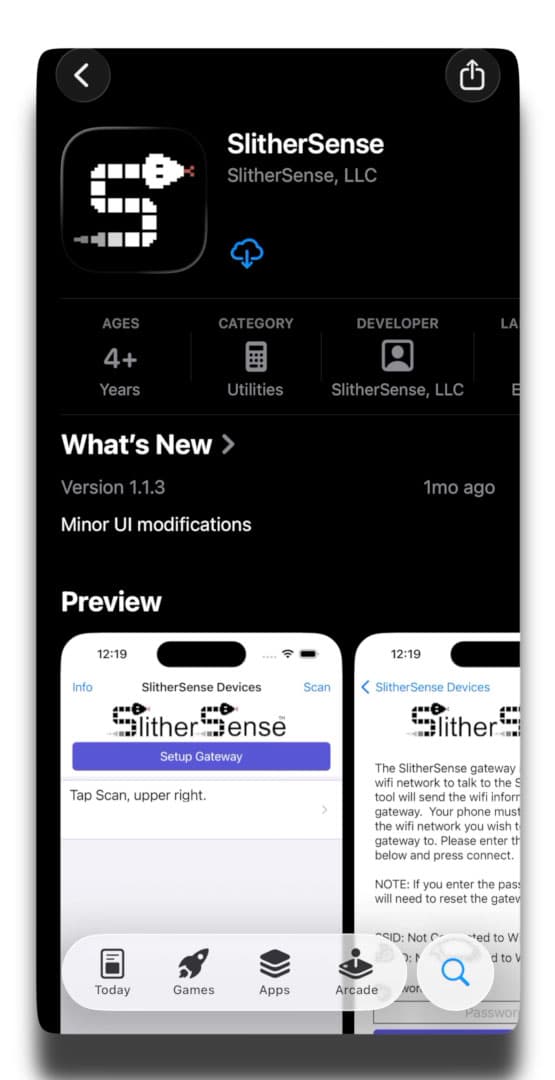
Find and open the SlitherSense App on your mobile device
- Once the app is downloaded. Find the app on your mobile device and open it.
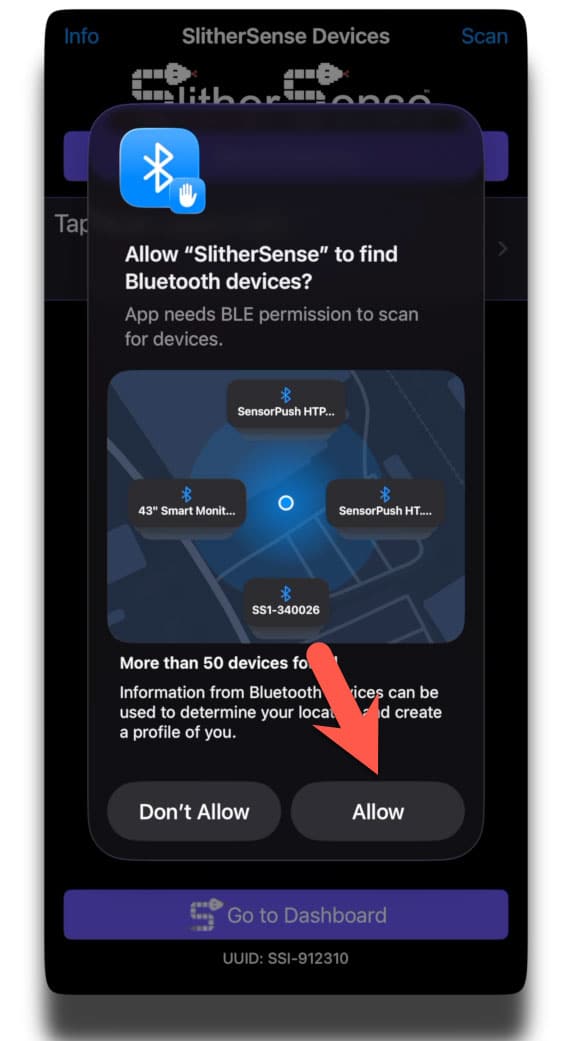
- You will be prompted to allow Bluetooth access. Click Allow. This will be necessary to find the SlitherSense devices.
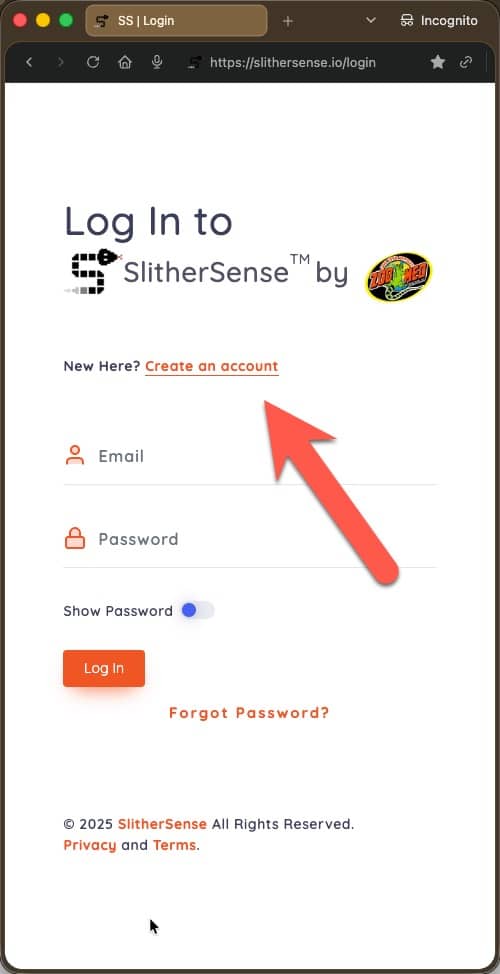
Create your SlitherSense account
- From your browser visit slithersense.io. Where it says "New Here?", click the "Create an Account Link
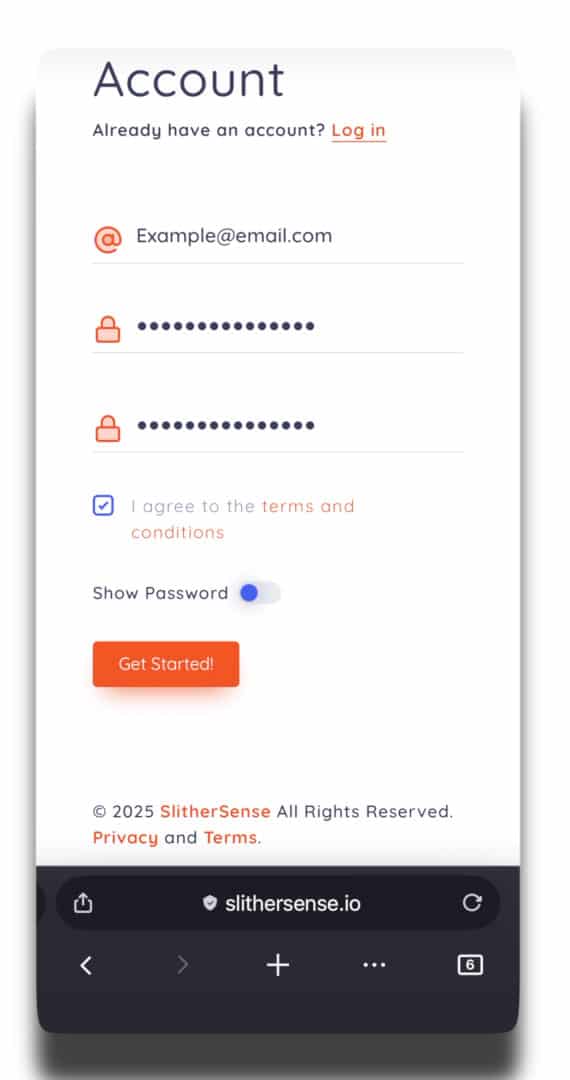
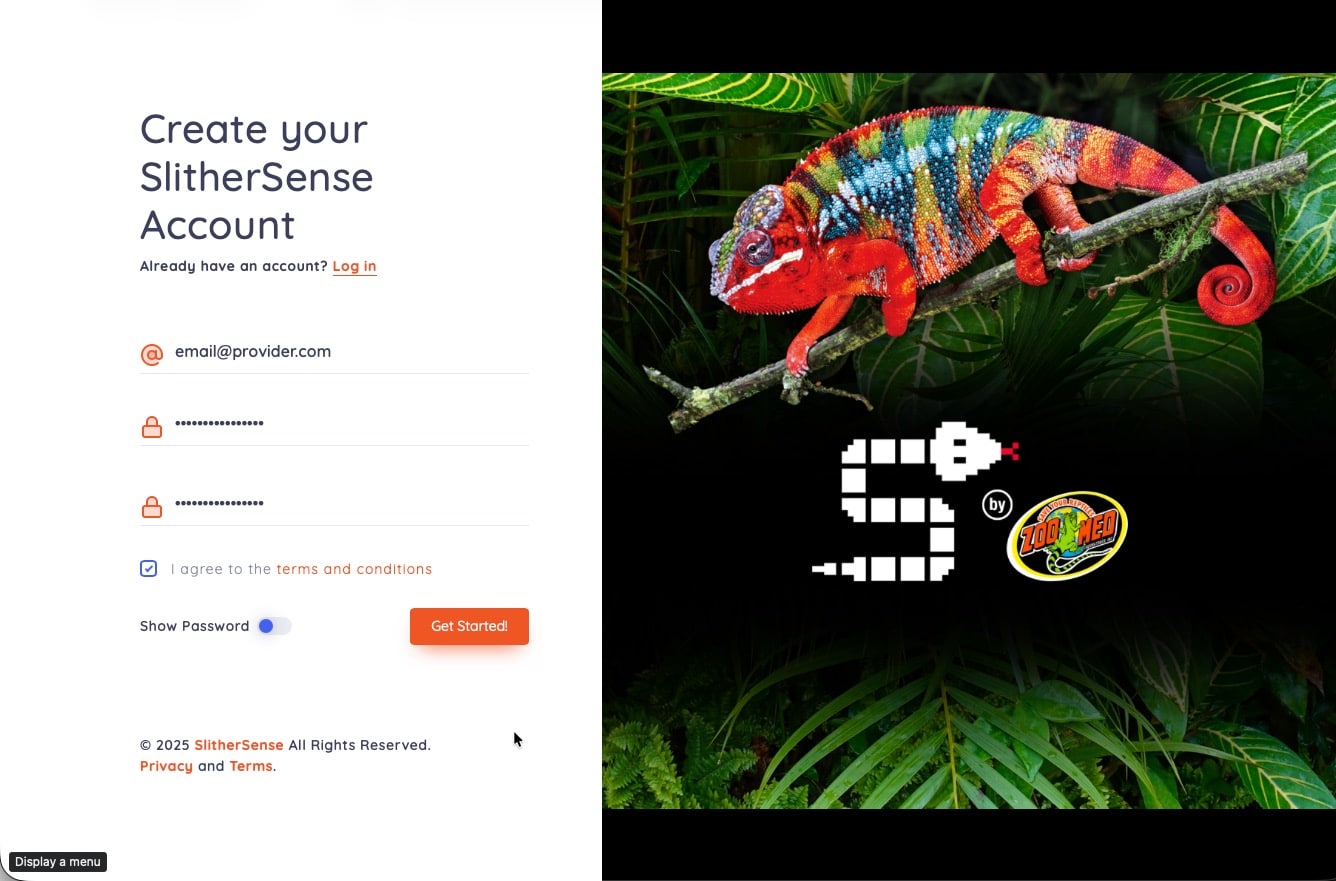
Enter Account Details
- Fill in your Email address and retype your password twice.
- Please check the I Agree box for the terms and conditions.
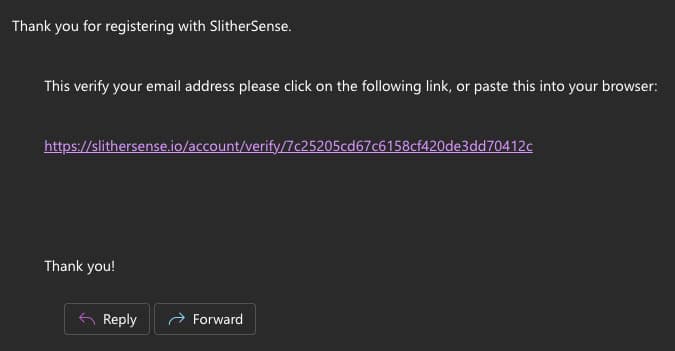
Verification Email
- Check your email account that was entered for a verification email.
- If you don't see it in your inbox, please check the spam folder.
- Click the link or copy and paste the URL into your preferred internet browser.
All Images can be enlarged by clicking on them.
Get the SlitherSense App
- Search the Apple App Store or Google Play store for the SlitherSense App from your mobile device.
- Download the app from the store.
Find and open the SlitherSense App on your mobile device
- Once the app is downloaded. Find the app on your mobile device and open it.
- You will be prompted to allow Bluetooth access. Click Allow. This will be necessary to find the SlitherSense devices.
Create your SlitherSense account
- From your browser visit slithersense.io. Where it says "New Here?", click the "Create an Account Link
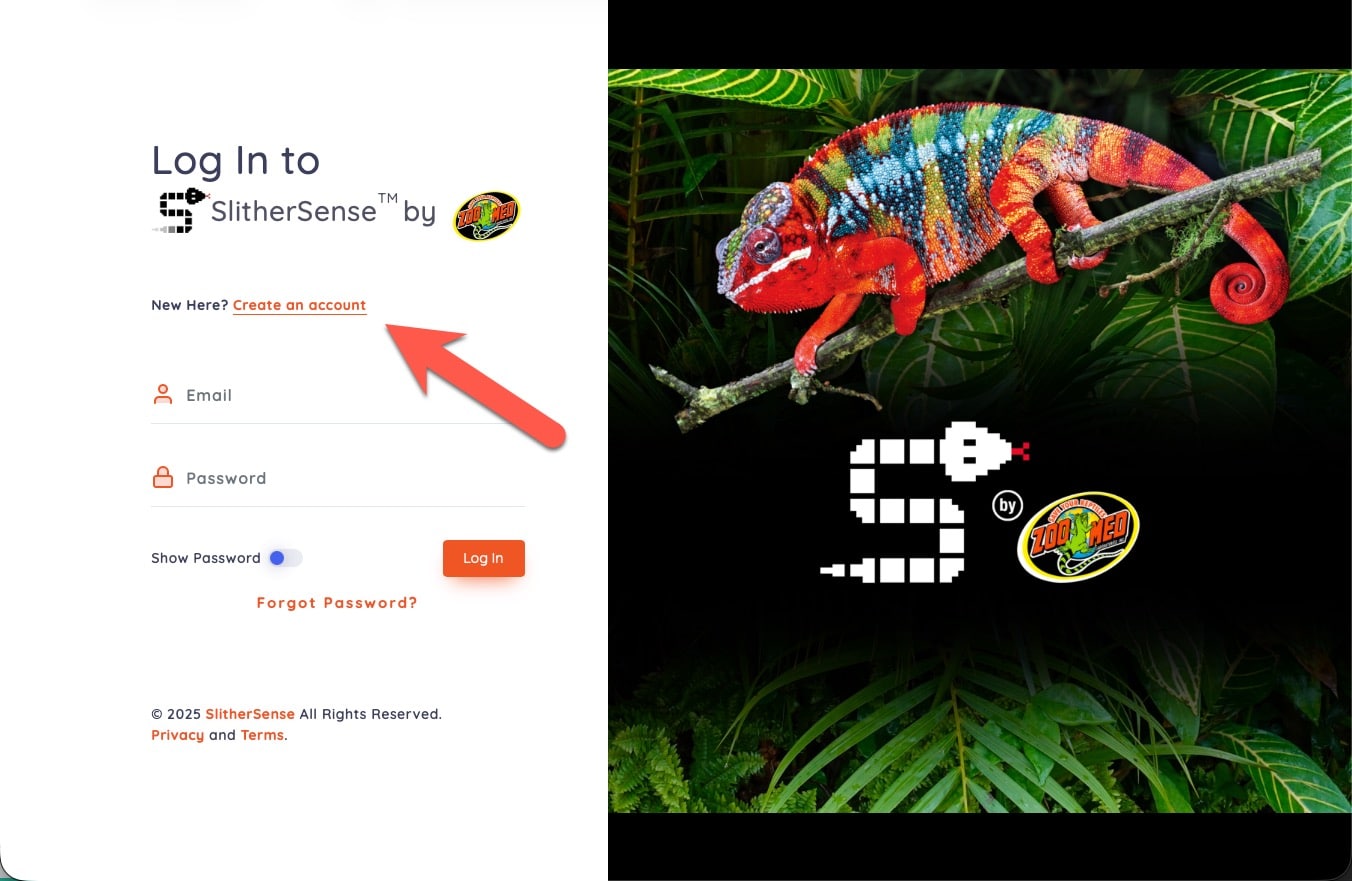
Enter Account Details
- Fill in your Email address and retype your password twice.
- Please check the I Agree box for the terms and conditions.
Verification Email
- Check your email account that was entered for a verification email.
- If you don't see it in your inbox, please check the spam folder.
- Click the link or copy and paste the URL into your preferred internet browser.
Setting Up the Gateway:
In this section, are the steps necessary to set up your SlitherSense Gateway.
All Images can be enlarged by clicking on them.
Set Up the SlitherSense Gateway
- Plug in the USB cord to the power block
- Plug the USB-C cord into the Gateway.
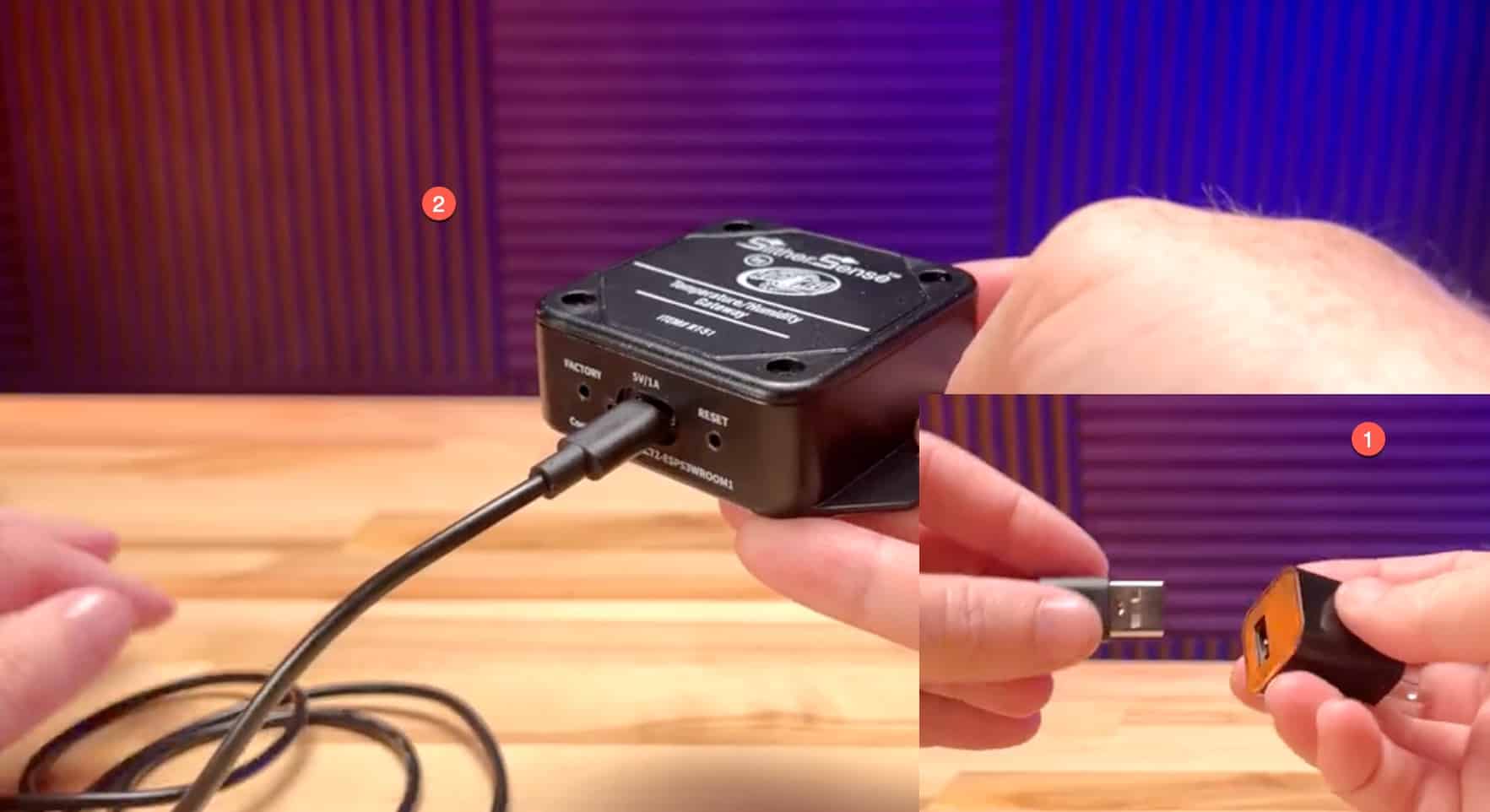
- Open the SlitherSense App on your mobile device.
- Click the Setup Gateway button located at the top of the screen.
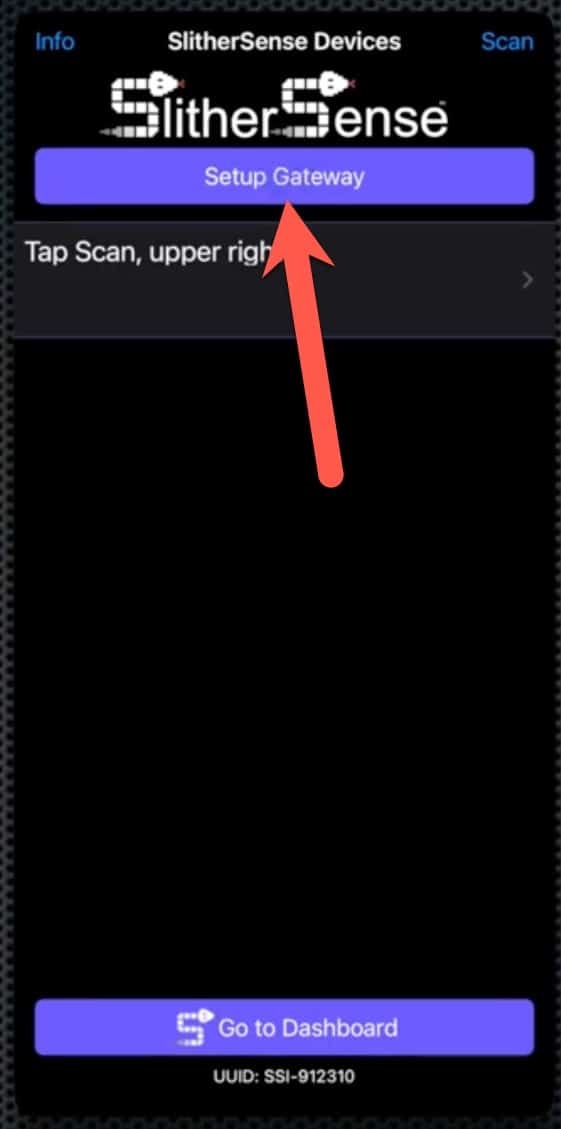
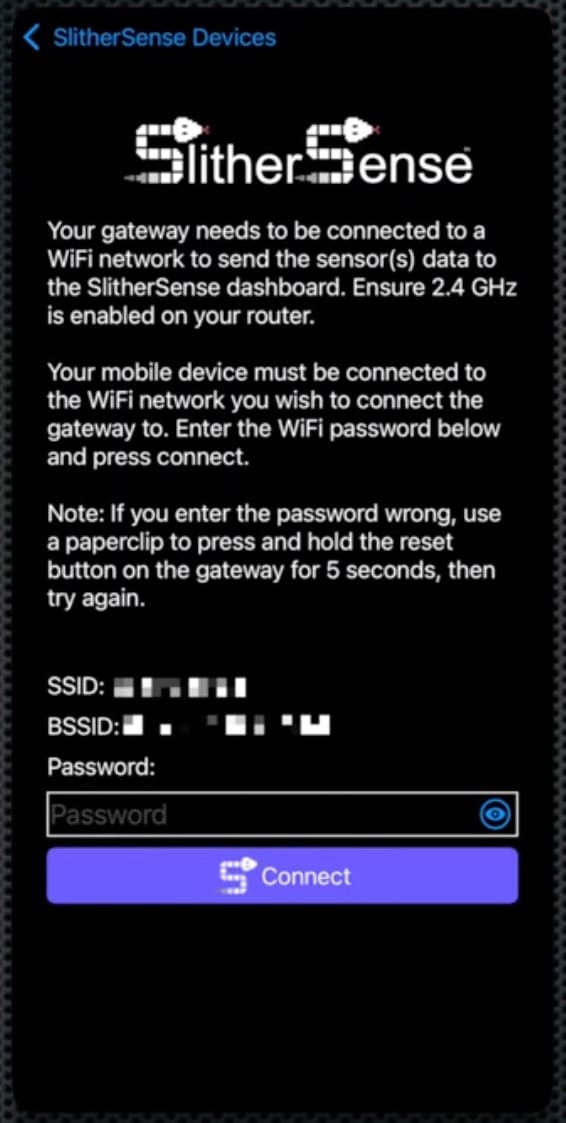
- Enter your Wireless Network Password.
- Your mobile device must be connected to this network.
- Press Connect
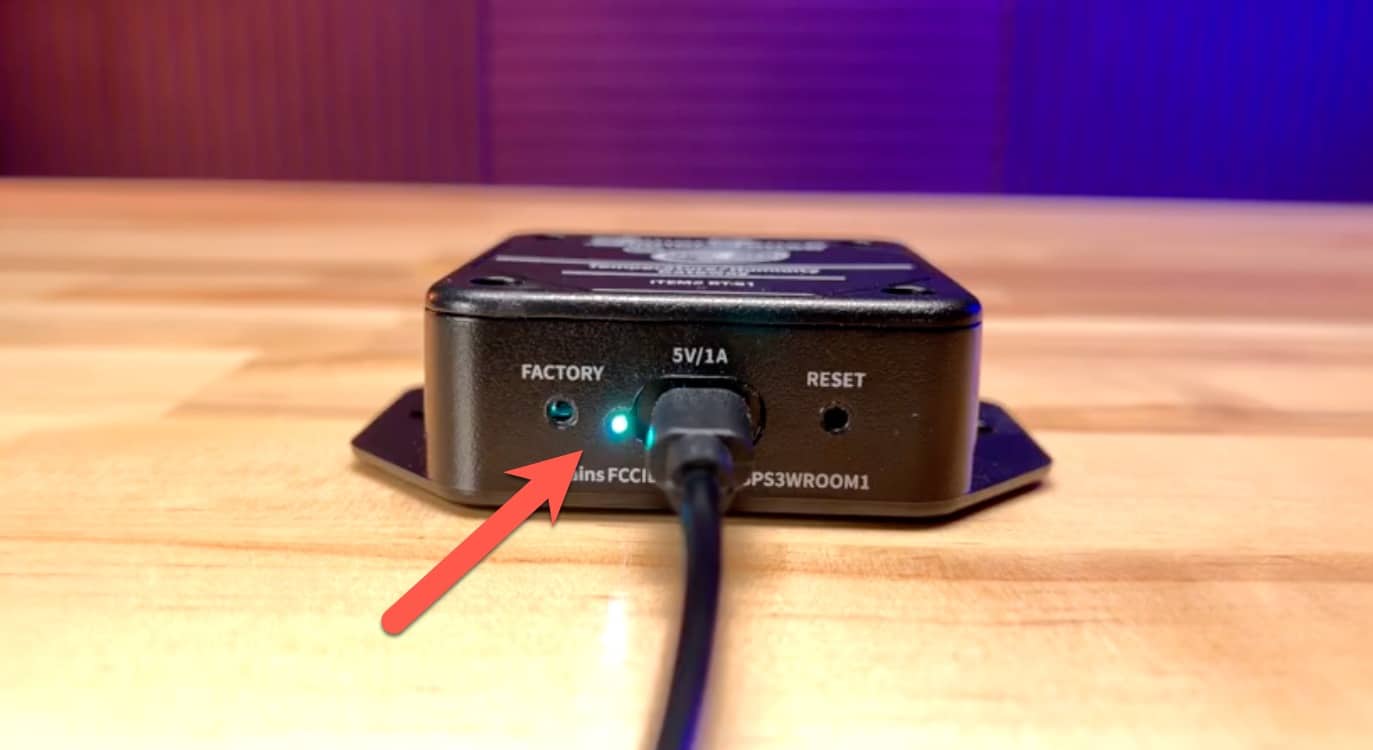
- The power light will flash multiple colors when connecting.
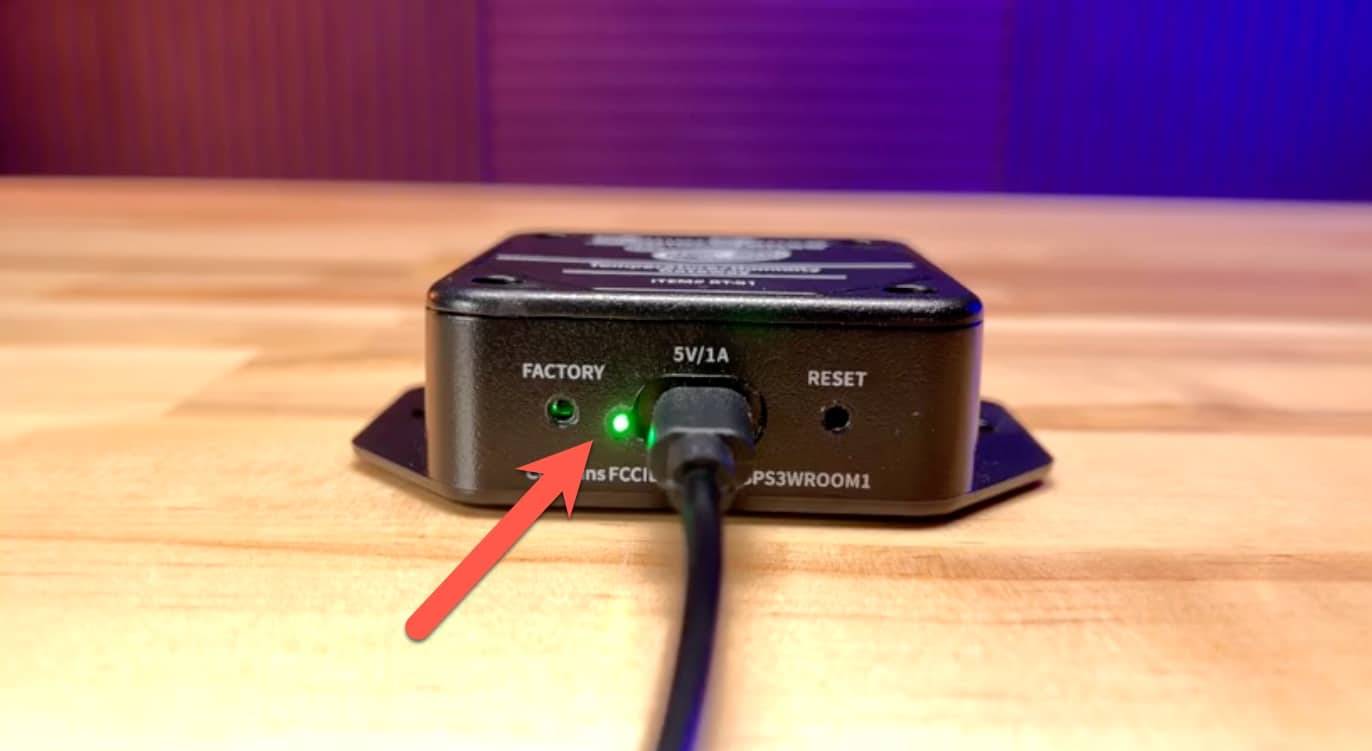
- Once connected the power light will flash green every 15 seconds.
Setting Up the Sensor:
In this section, are the steps necessary to set up your SlitherSense Sensor.
All Images can be enlarged by clicking on them.
Set Up the SlitherSense Sensor
- Make sure your mobile device and SlitherSense Gateway are both connected to the same WiFi network.
- Open the SlitherSense Mobile App
- In the top right corner, click the "Scan" link
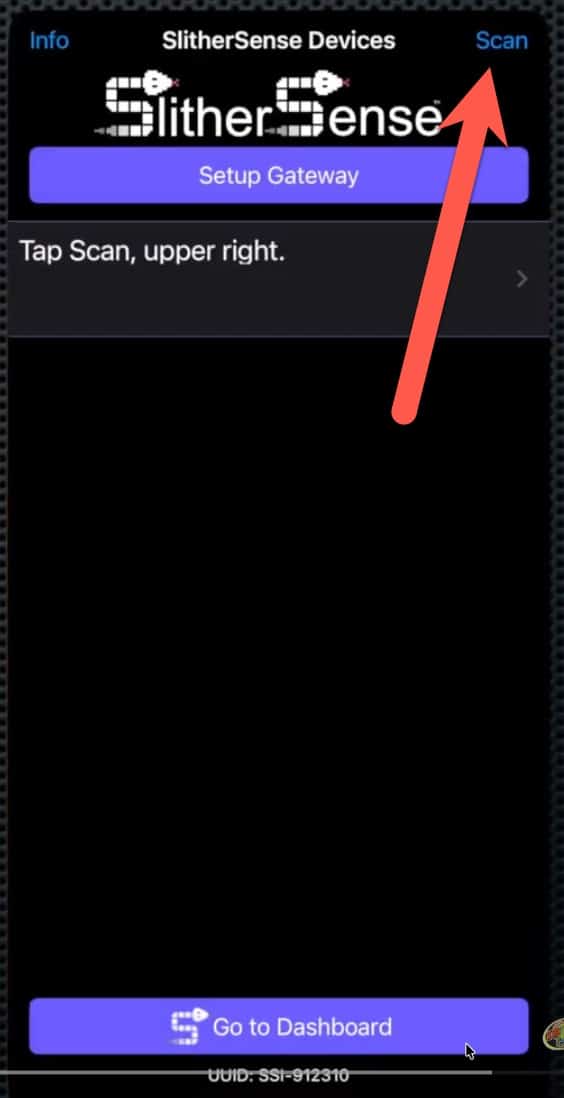
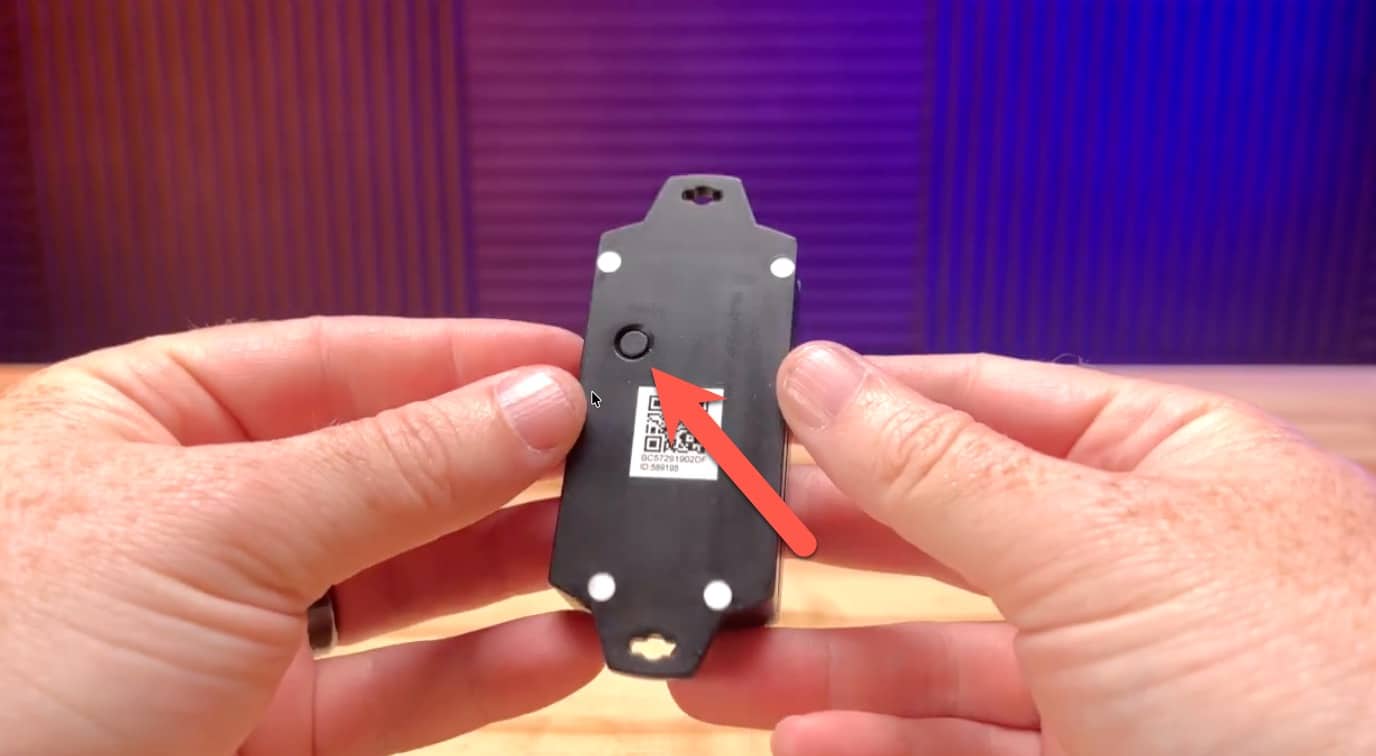
- Once "Scan" has been pressed on the SlitherSense App on your device, power on the sensor by pressing the power button for 5 seconds.
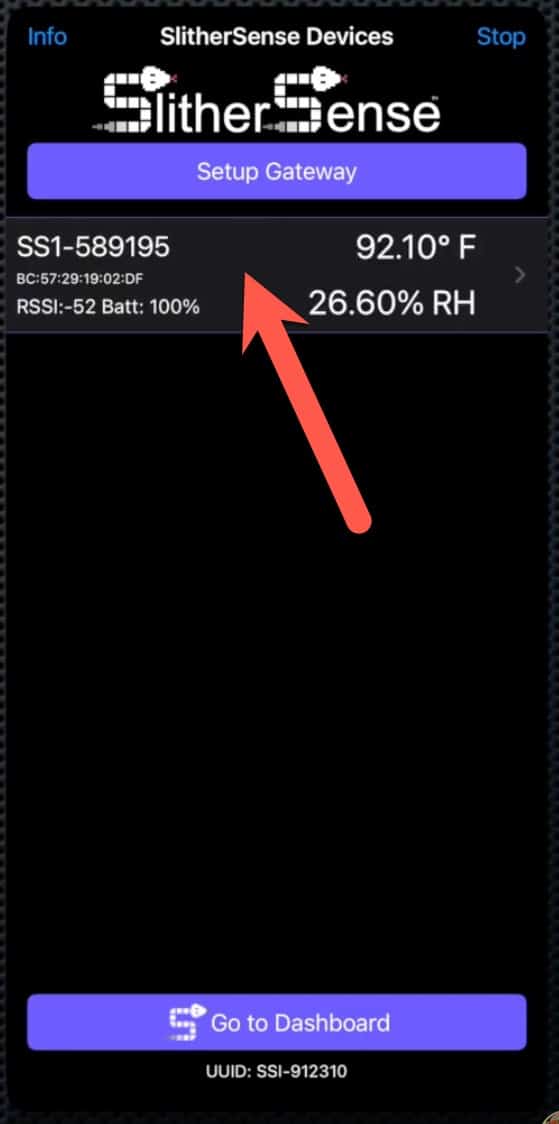
- Once found in the SlitherSense App, click on the sensor.
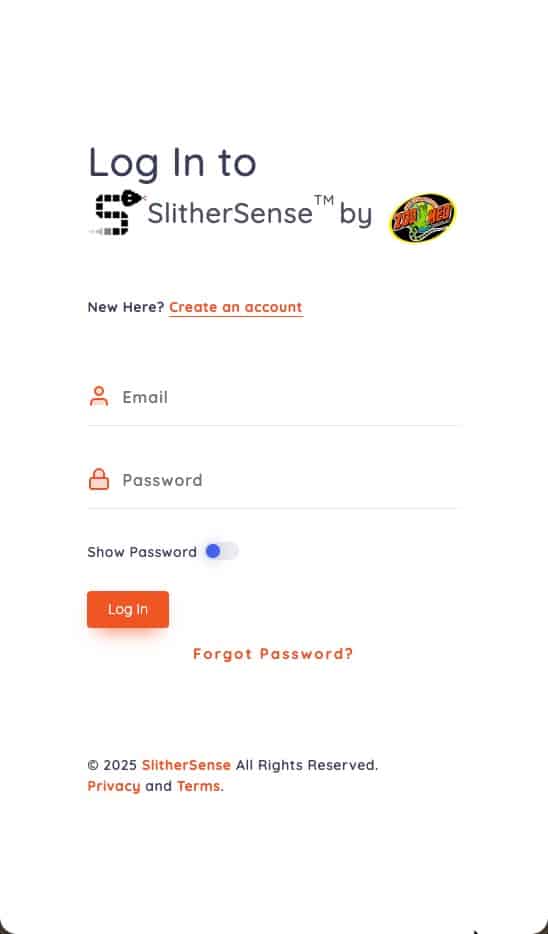
- This will open a web browser on your mobile device to login to slithersense.io
- Enter your email address and password for you SlitherSense account.
- Click Login
- Enter the sensor's 6-digit unique identifier.
- This can be found on the back of the sensor, labeled with ID in front of it.
- Give the Sensor a name.
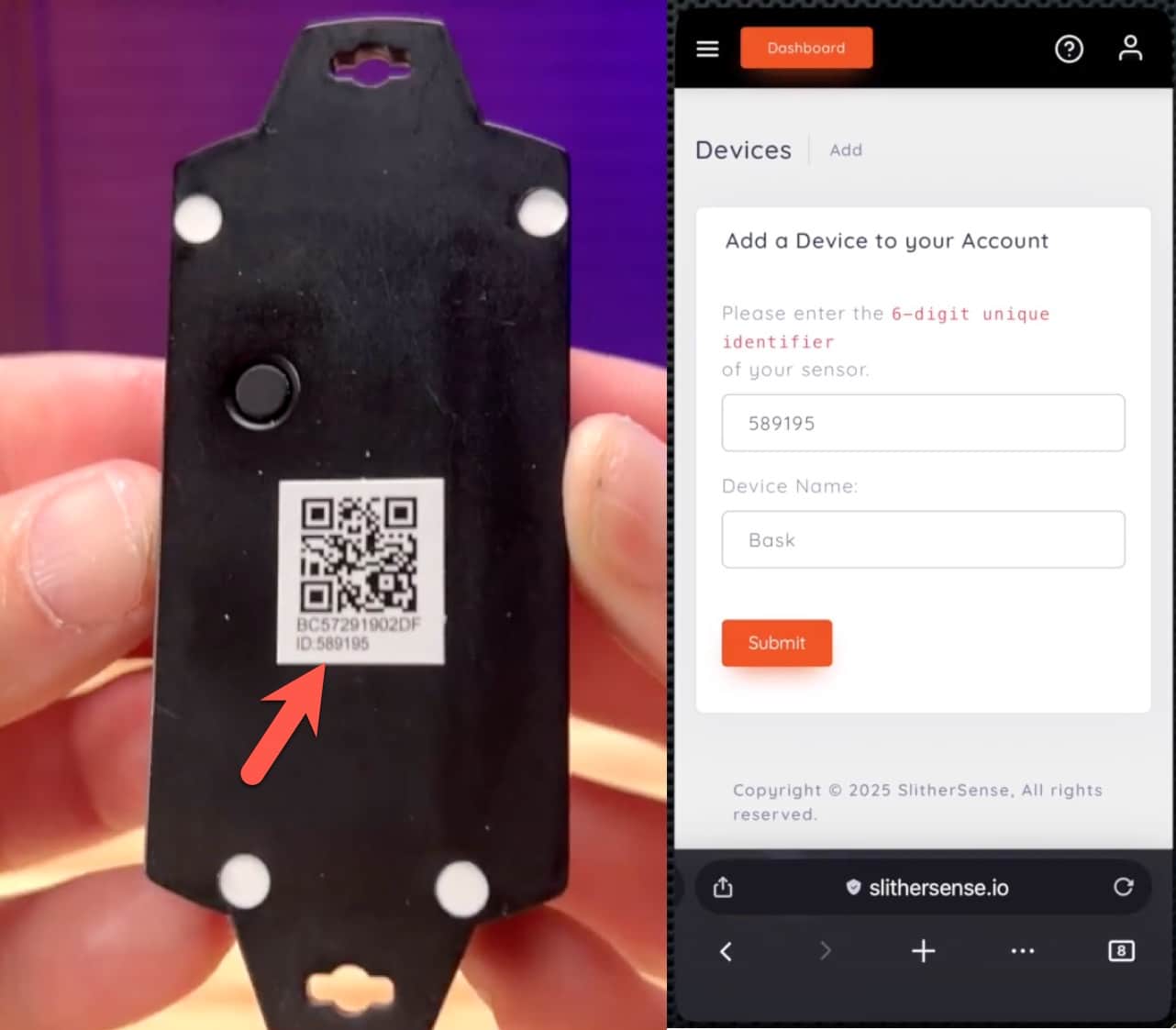
- Once ID and Name are entered, click Submit
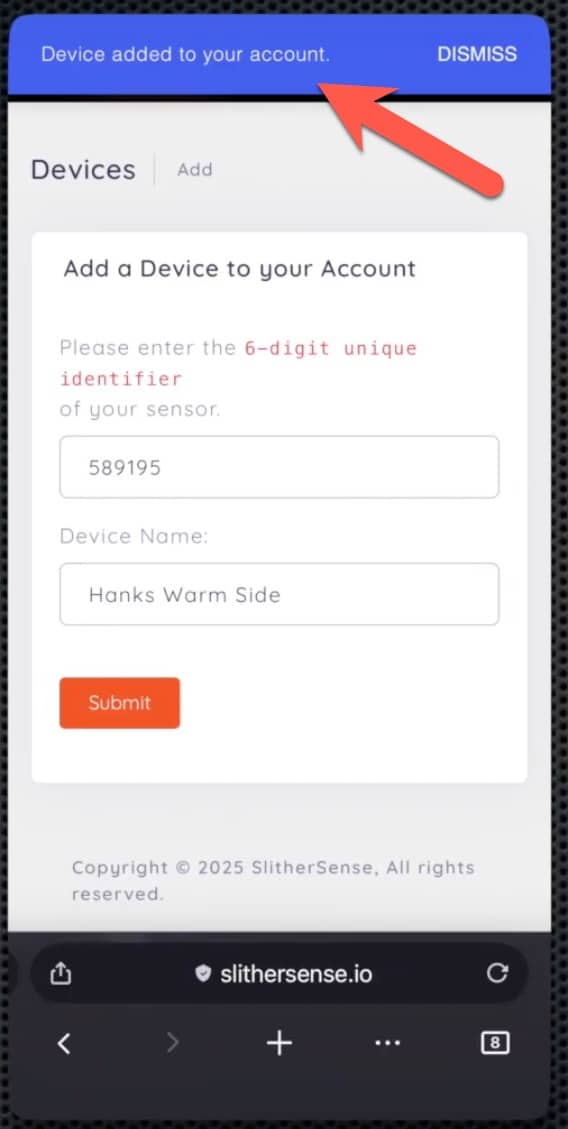
- You will see a confirmation message that the device was added to your account.
How to Add a Location:
In this section, are the steps necessary to add a location. The video shows both mobile and desktop steps. Below the video are the steps covered in the video.
All Images can be enlarged by clicking on them.
Add a Location
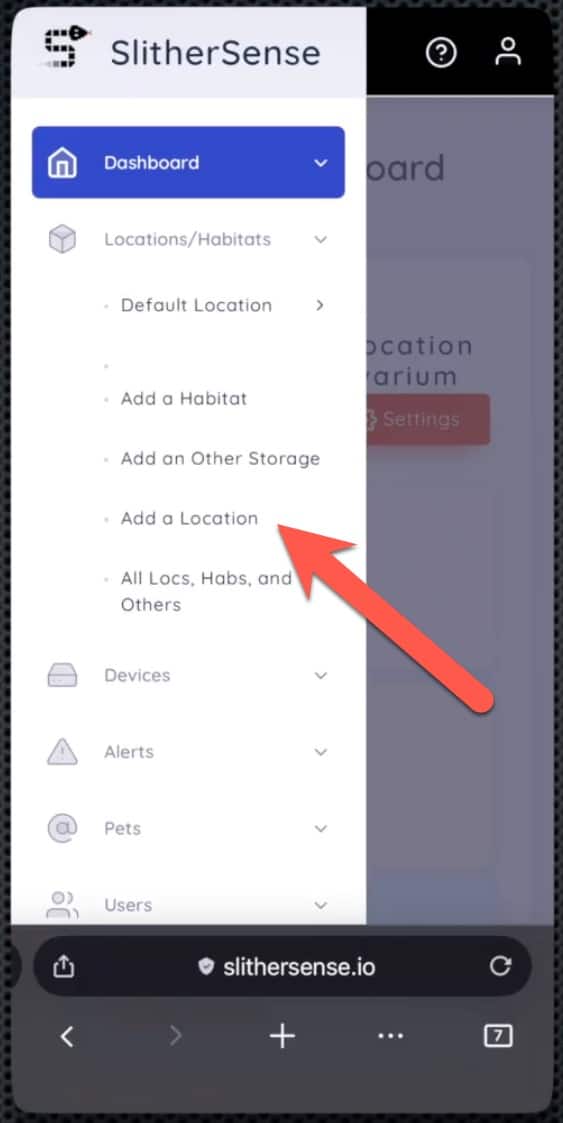
- From the Slithe Sense Dashboard at https://slithersense.io, click the hamburger menu in the top left corner
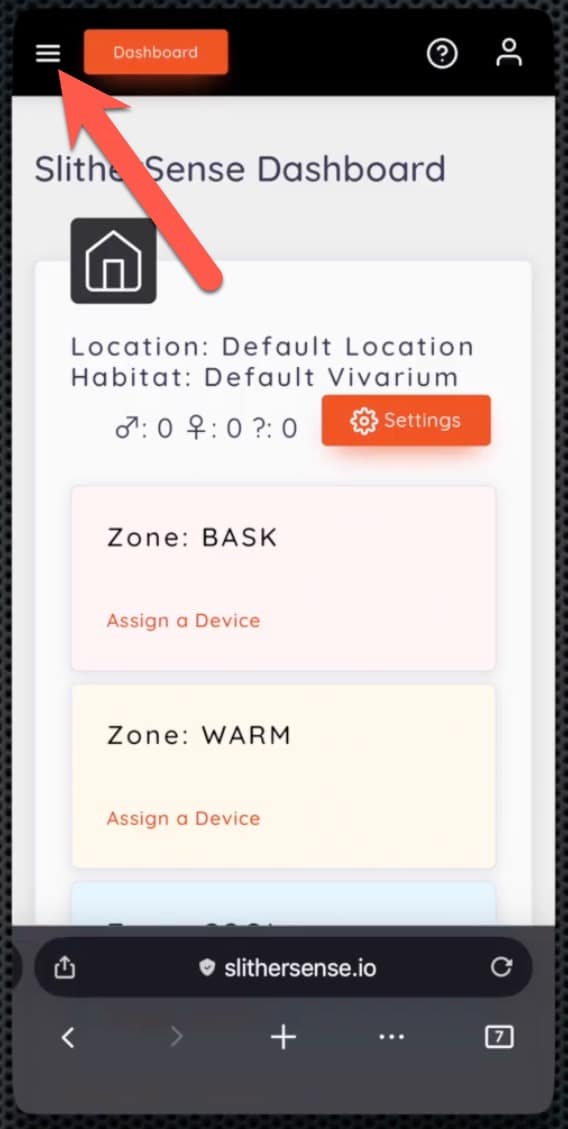
- Click On Locations and Habitats
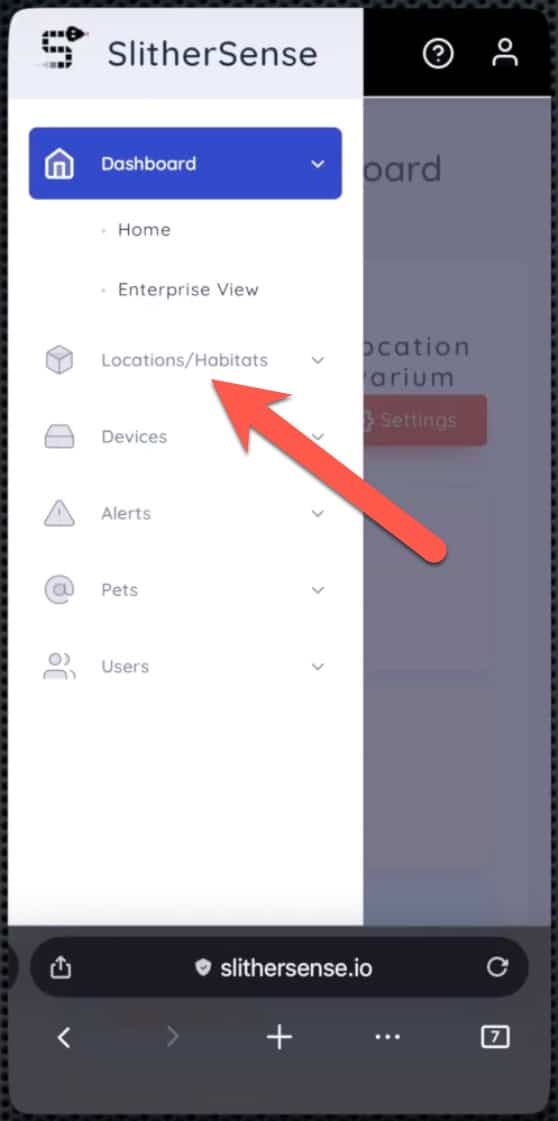
- Click on Add a Location
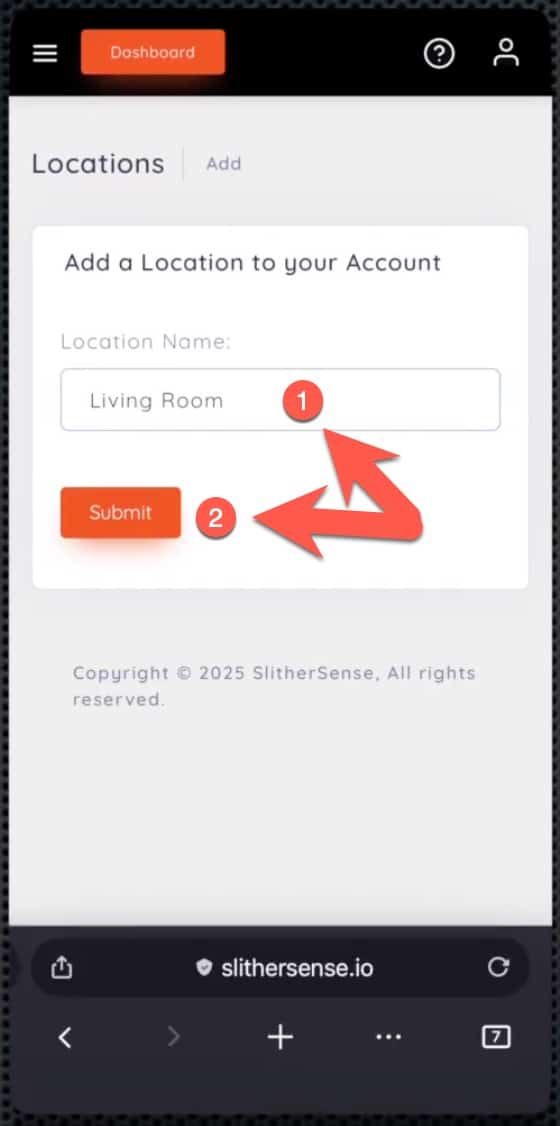
- Give the Location at Name
- Click Submit
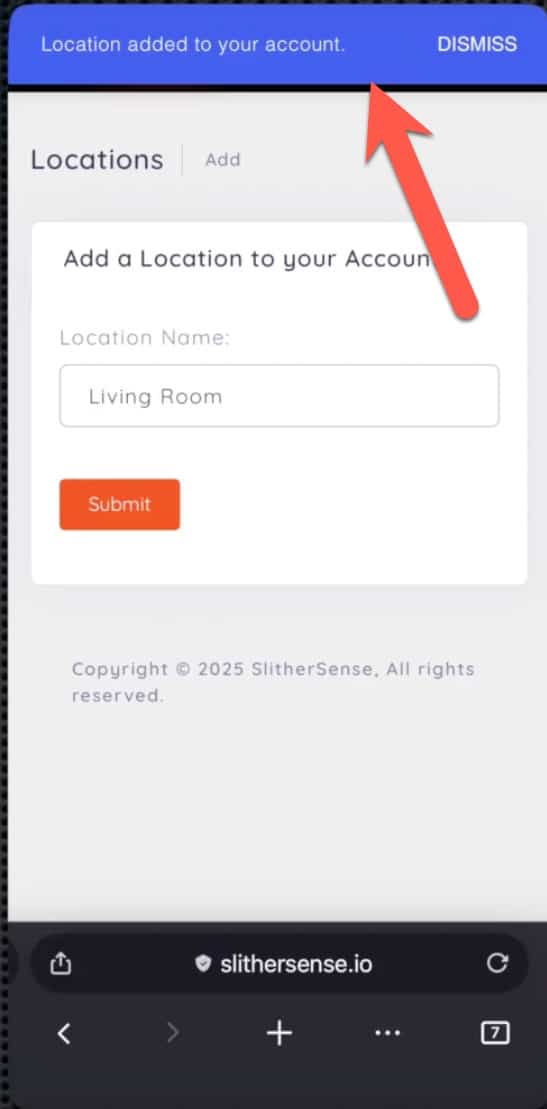
- A confirmation will appear letting you know the location was created successfully.
All Images can be enlarged by clicking on them.
Add a Location
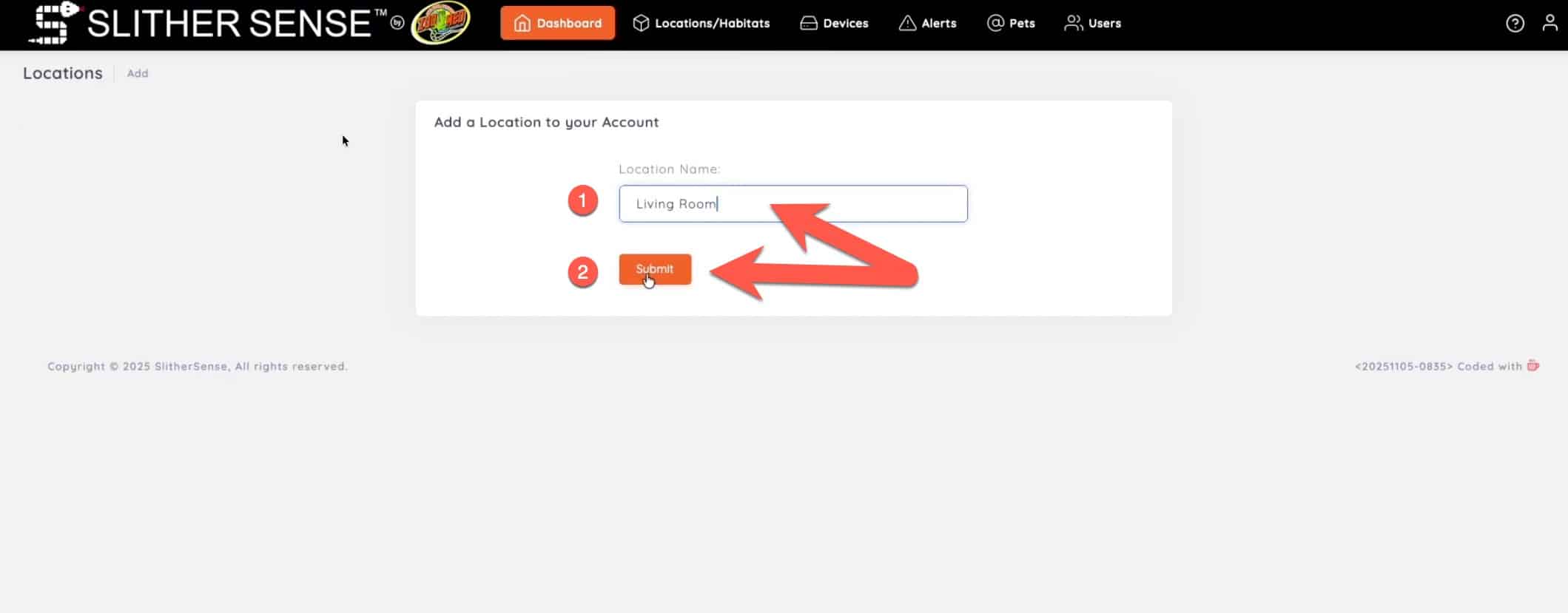
- From the SlitherSense Dashboard at https://slithersense.io, click the Locations/Habitats menu item
- Click Add a Location
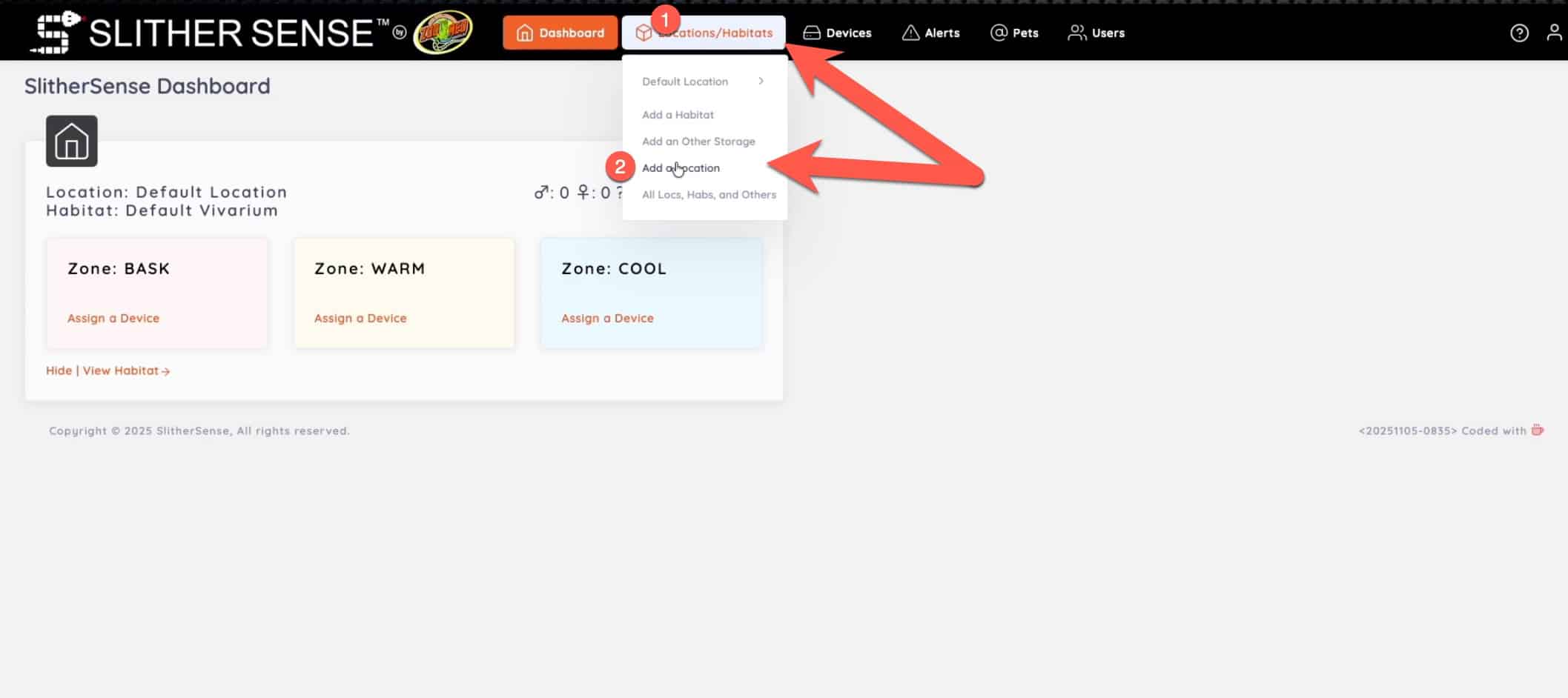
- Give the Location at Name
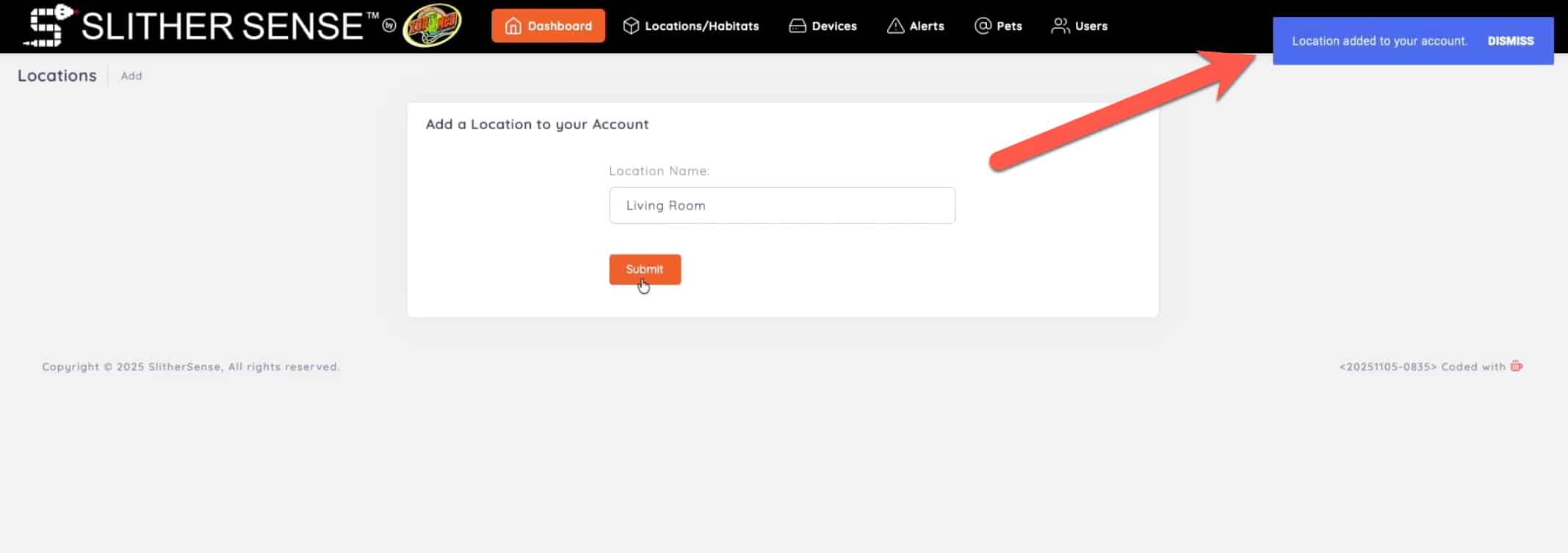
- Click Submit
- A confirmation will appear letting you know the location was created successfully.
How to Add a Habitat:
In this section, are the steps necessary to add a habitat. The video shows both mobile and desktop steps. Below the video are the steps covered in the video.
All Images can be enlarged by clicking on them.
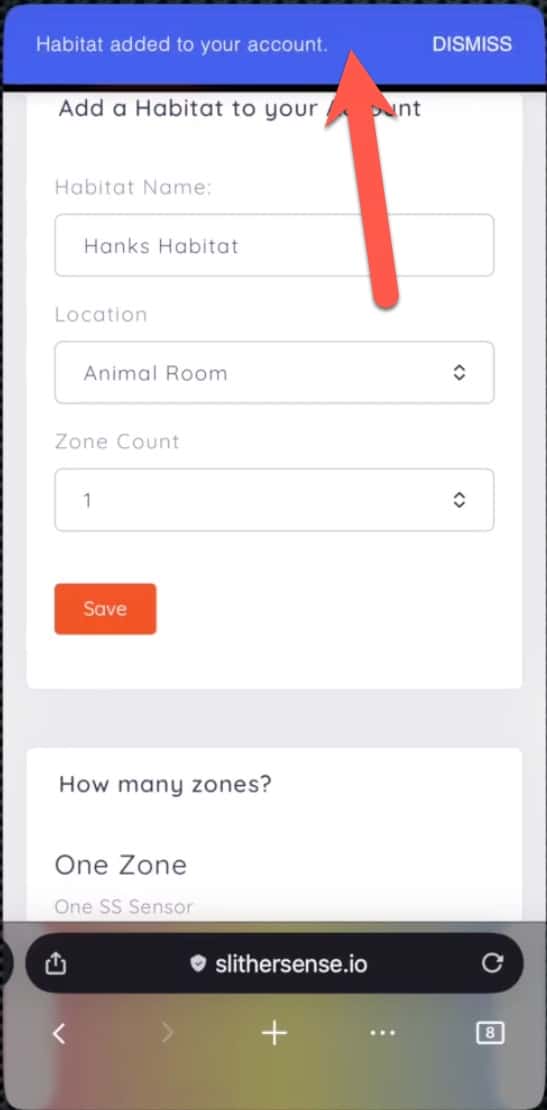
Add a Habitat
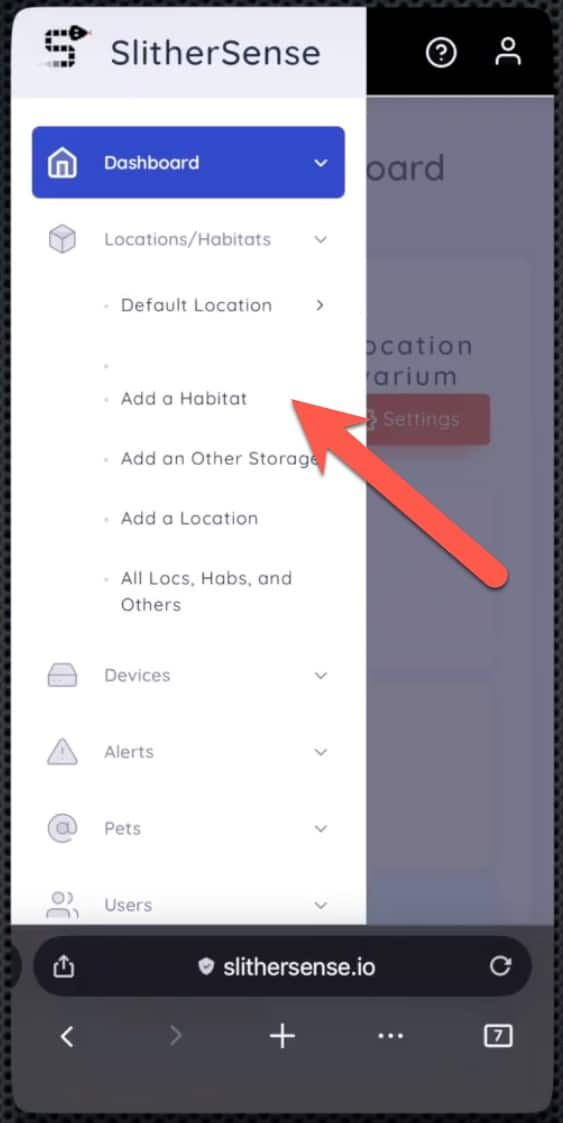
- From the SlitherSense Dashboard at https://slithersense.io, click the hamburger menu in the top left corner
- Click On Locations and Habitats
- Click on Add a Habitat
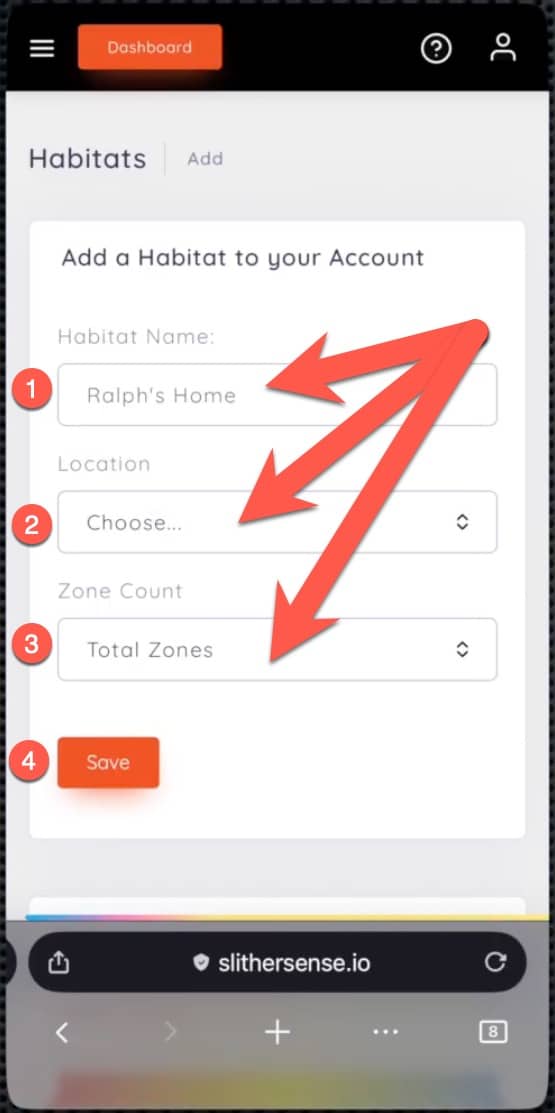
- Give the Habitat at Name
- Select a previously setup Location
- Select the number of Zones (The number of sensors that will be in this Habitat)
- Click Save
- A confirmation will appear letting you know the Habitat was created successfully.
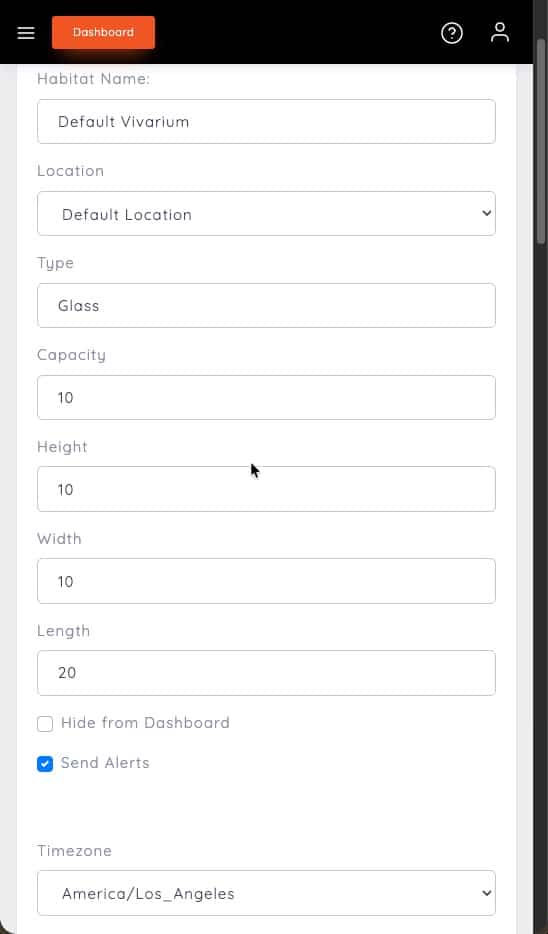
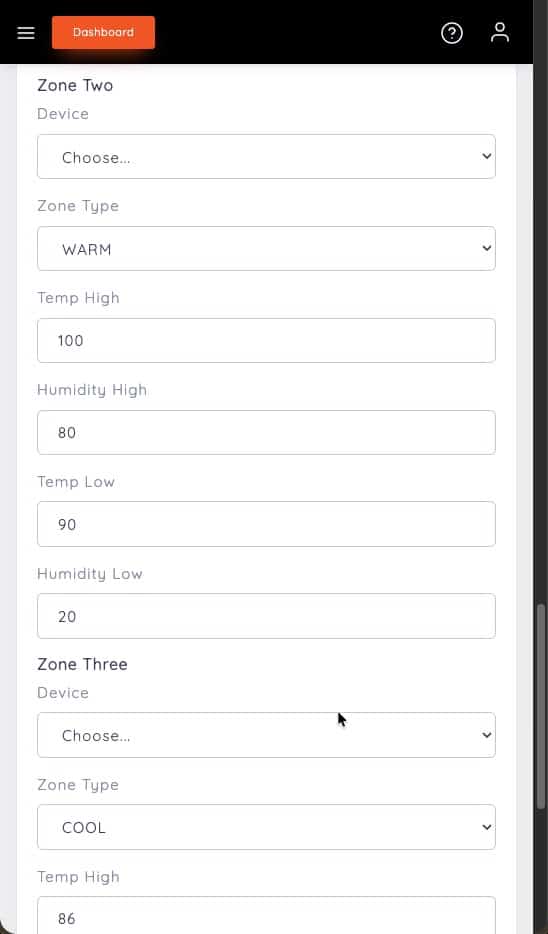
- Fill out the details of the Habitat
- Type (Glass by default)
- Capacity, typically in gallons
- Height
- Width
- Length
- If you would like to hide it on the dashboard
- If you would like to receive alerts for this habitat
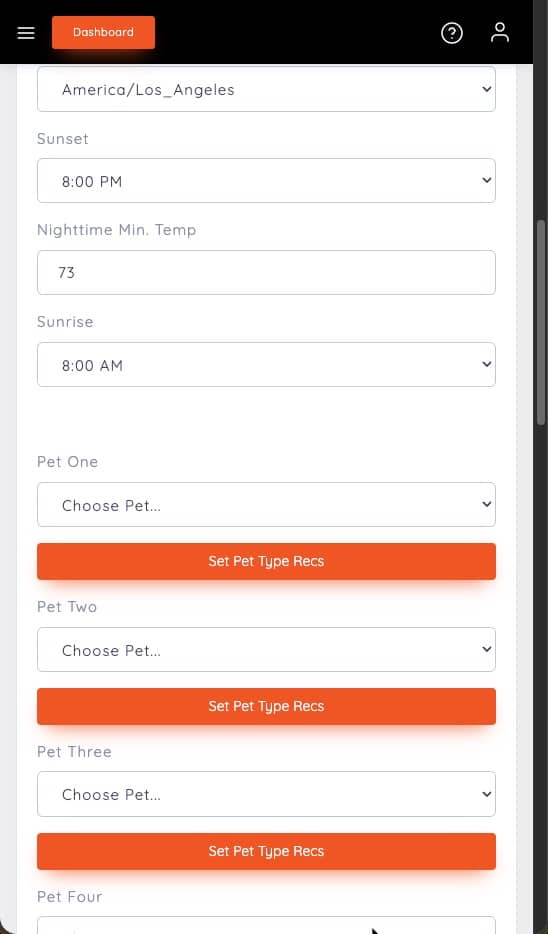
- Time Zone
- Sunset
- Nighttime Minimum Temp for Habitat
- Sunrise
- Select a Pet (if no pets have been added yet, please see Add a Pet help section. Once a pet is added, you can come back and select it from the list.)
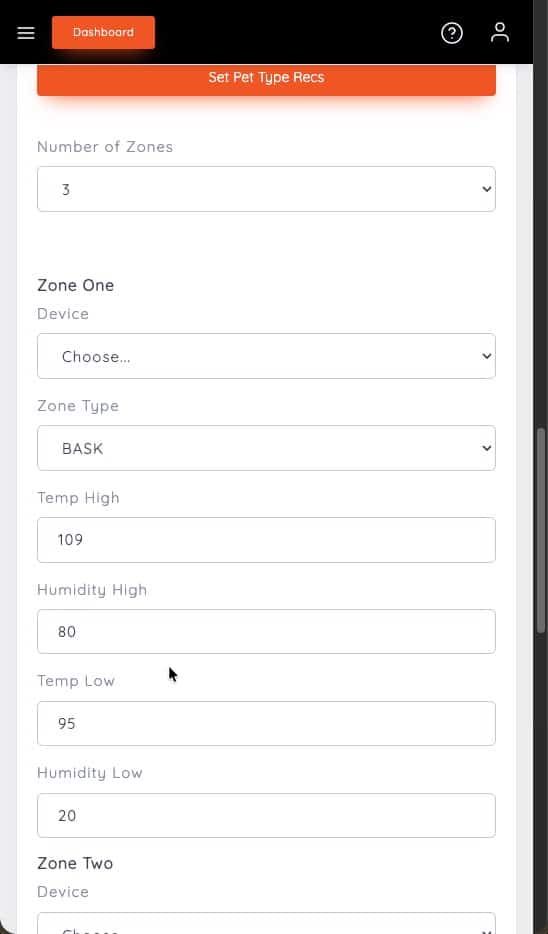
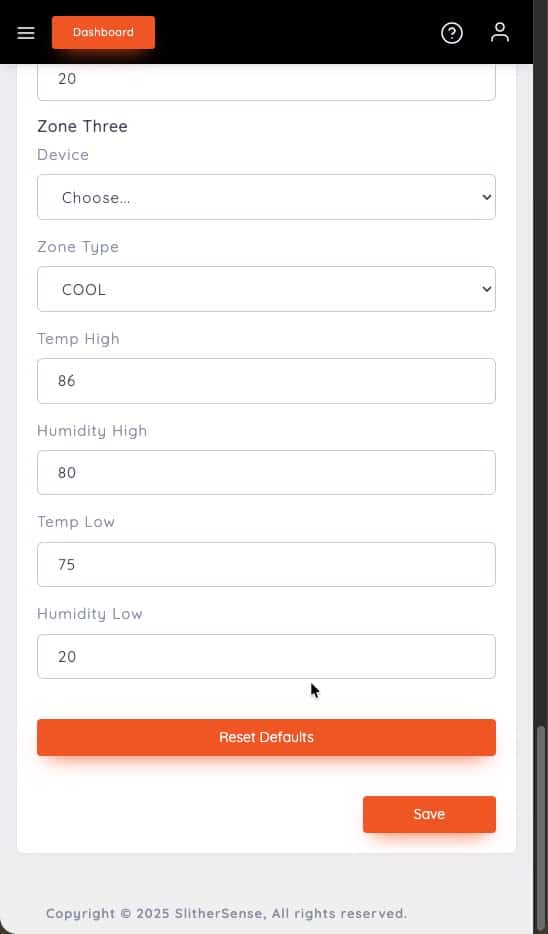
- Review number of zones
- Choose a device for each zone
- Choose a Zone Type (Bask, Warm, or Cool)
- Set Ranges for Each Zone
- Click Save
All Images can be enlarged by clicking on them.
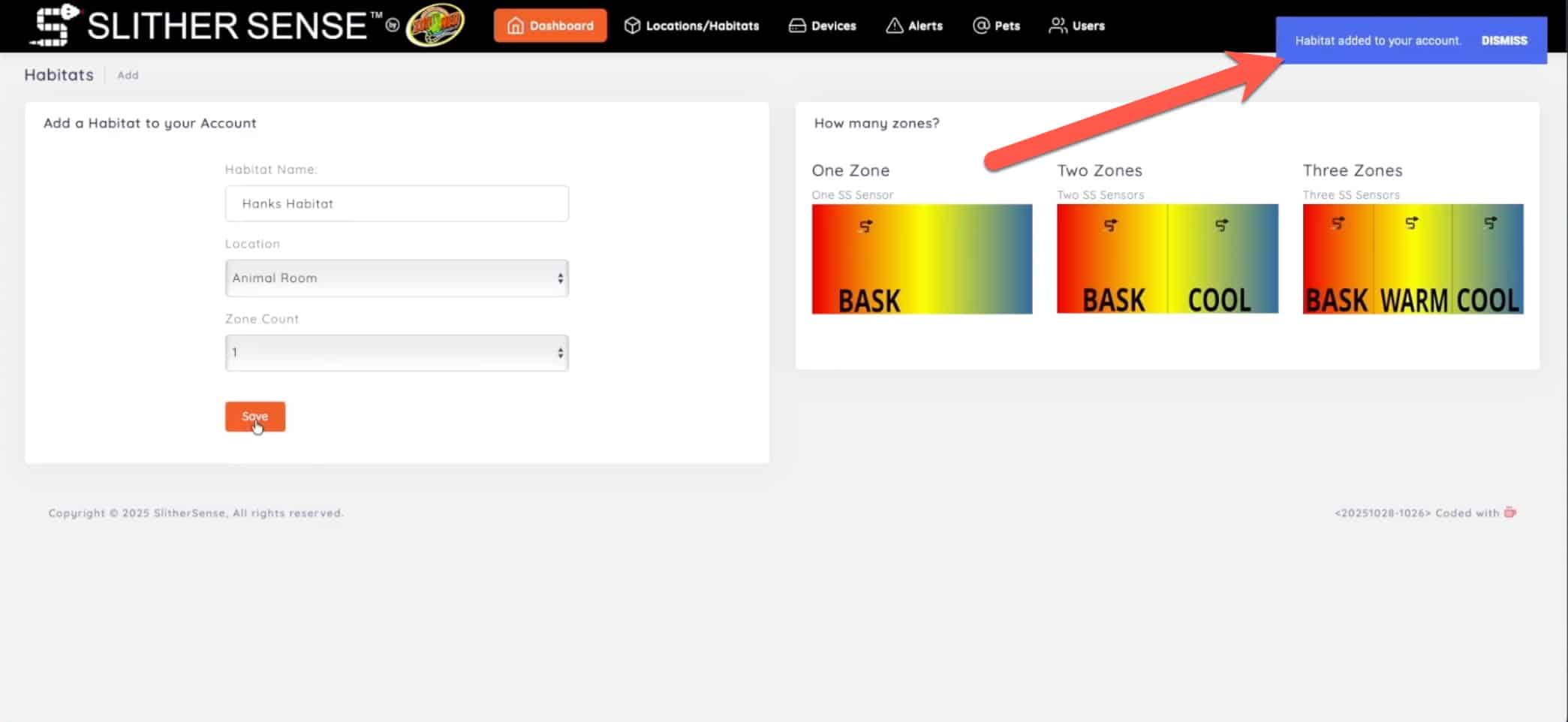
Add a Habitat
- From the SlitherSense Dashboard at https://slithersense.io, click the Locations/Habitats menu item
- Click Add a Habitat
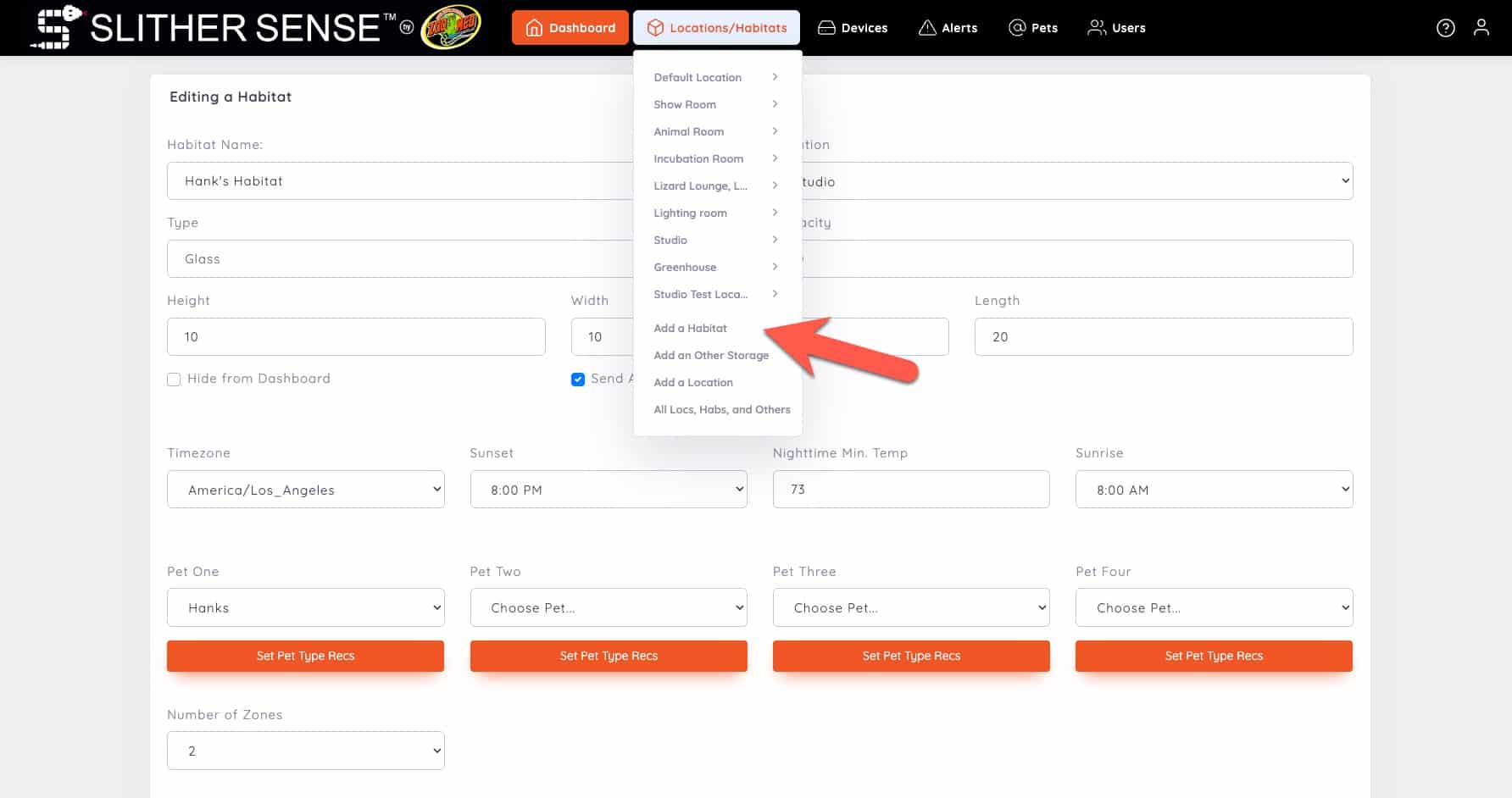
- Give the Habitat at Name
- Select a previously setup Location
- Select the number of Zones (The number of sensors that will be in this Habitat)
- Click Save
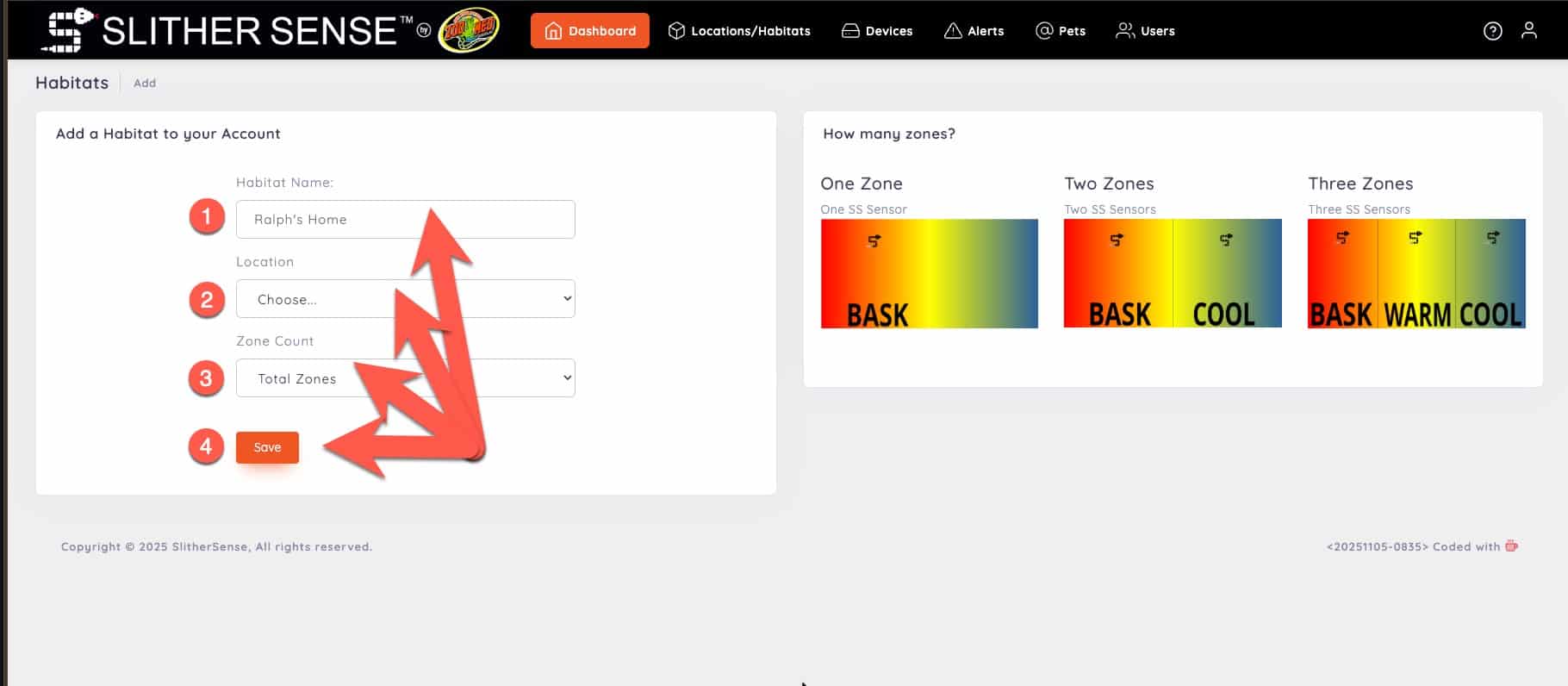
- A confirmation will appear letting you know the Habitat was created successfully.
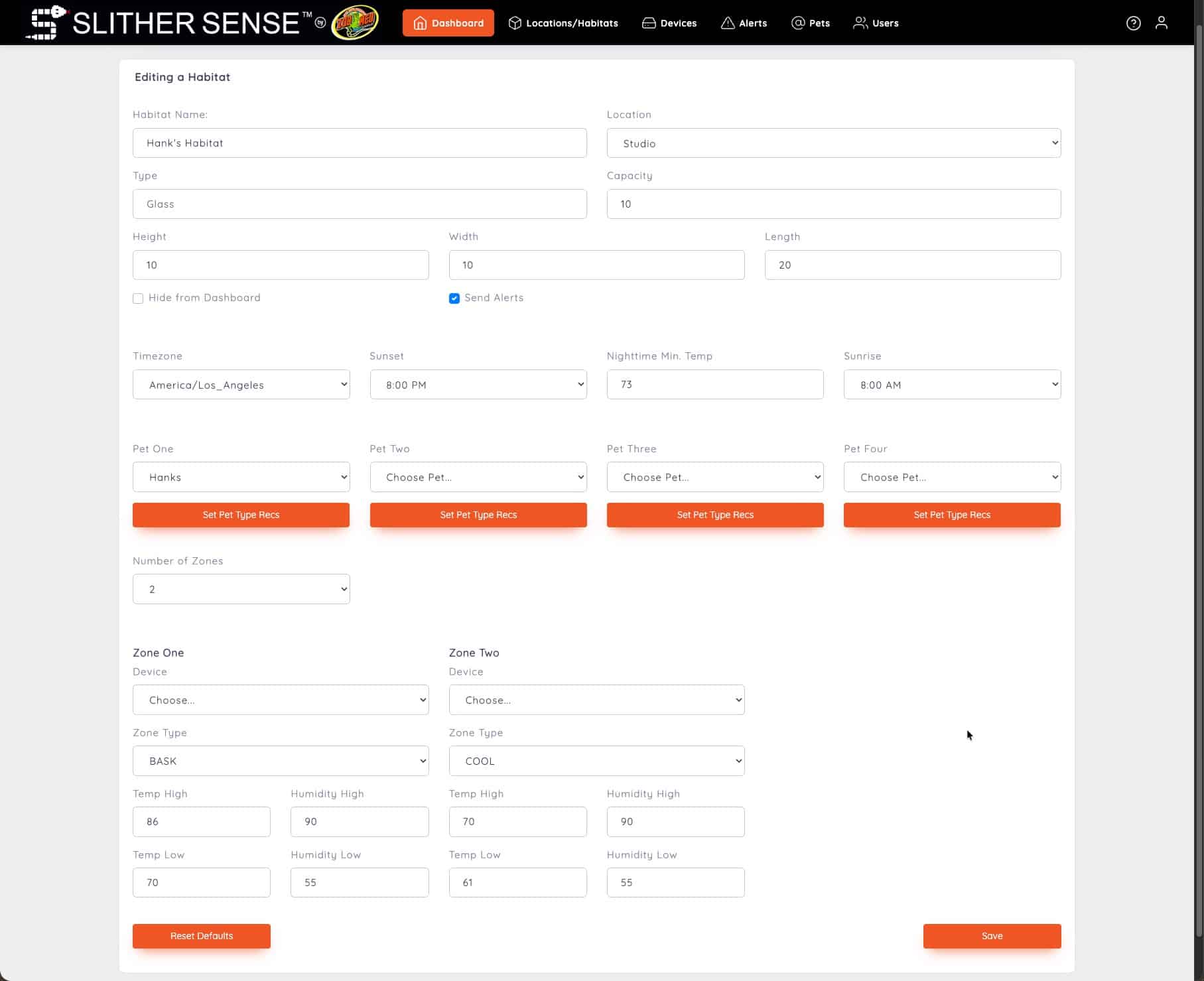
- Fill out the details of the Habitat
- Type (Glass by default)
- Capacity, typically in gallons
- Height
- Width
- Length
- If you would like to hide it on the dashboard
- If you would like to receive alerts for this habitat
- Time Zone
- Sunset
- Nighttime Minimum Temp for Habitat
- Sunrise
- Select a Pet (if no pets have been added yet, please see Add a Pet help section. Once a pet is added, you can come back and select it from the list.)
- Review number of zones
- Choose a device for each zone
- Choose a Zone Type (Bask, Warm, or Cool)
- Set Ranges for Each Zone
- Click Save
How to Add a Pet:
In this section, are the steps necessary to add a pet. The video shows both mobile and desktop steps. Below the video are the steps covered in the video.
All Images can be enlarged by clicking on them.
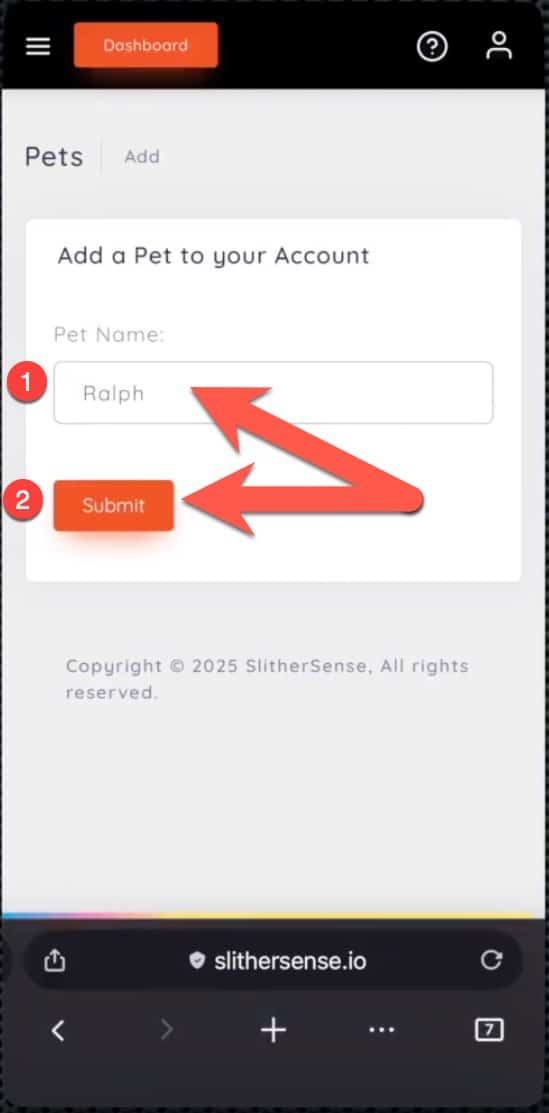
Add a Pet
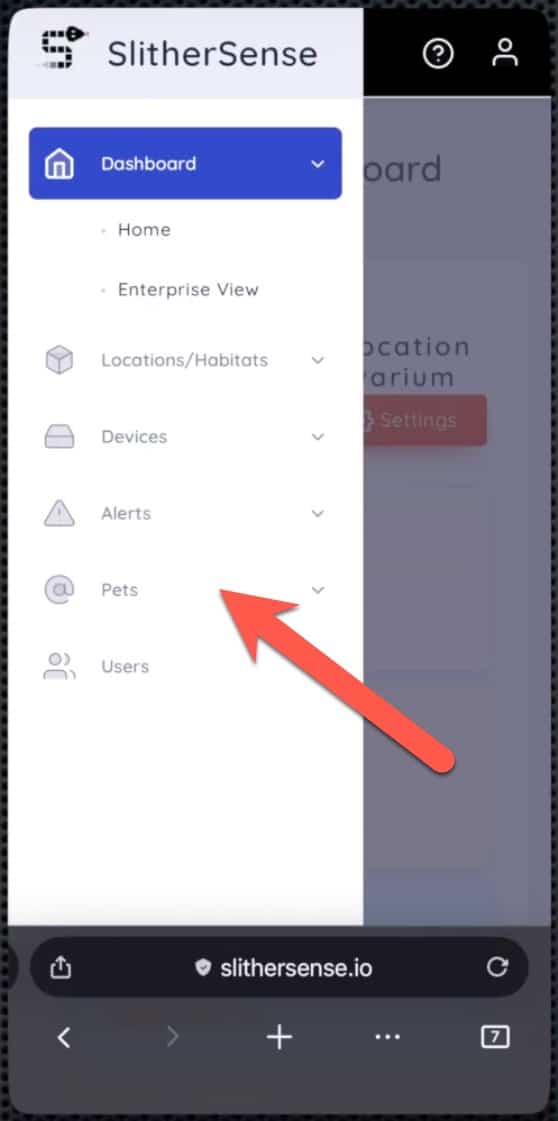
- From the SlitherSense Dashboard at https://slithersense.io, click the hamburger menu in the top left corner
- Click On Pets
- Click on Add a Pet
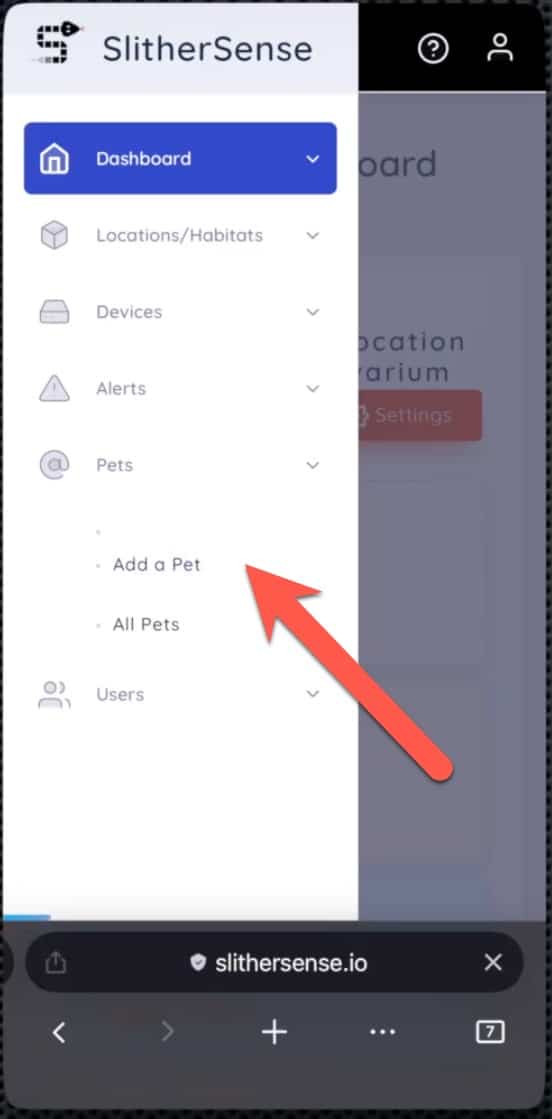
- Give the Pet at Name
- Click Submit
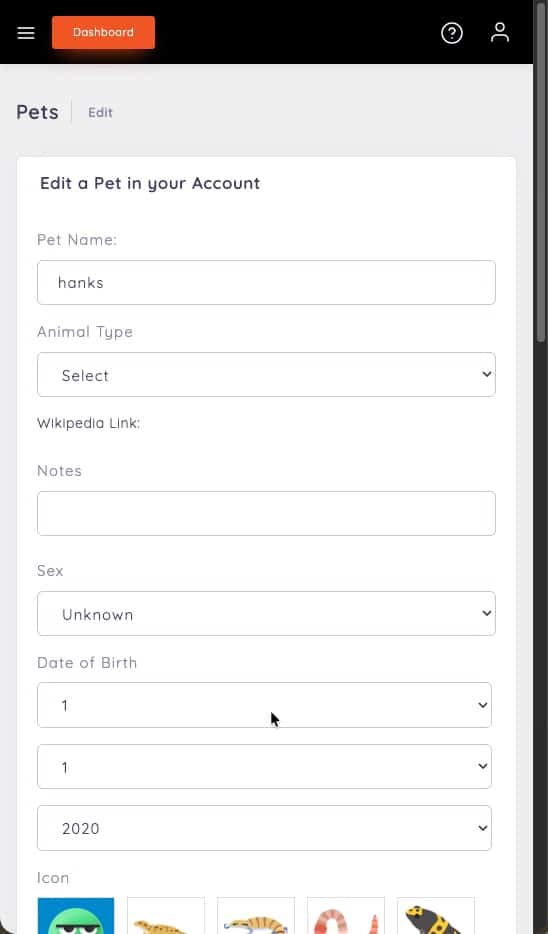
- Fill out information about your pet
- Pet Name
- Animal Type (Select from List)
- Any Notes
- Sex
- Date of Birth
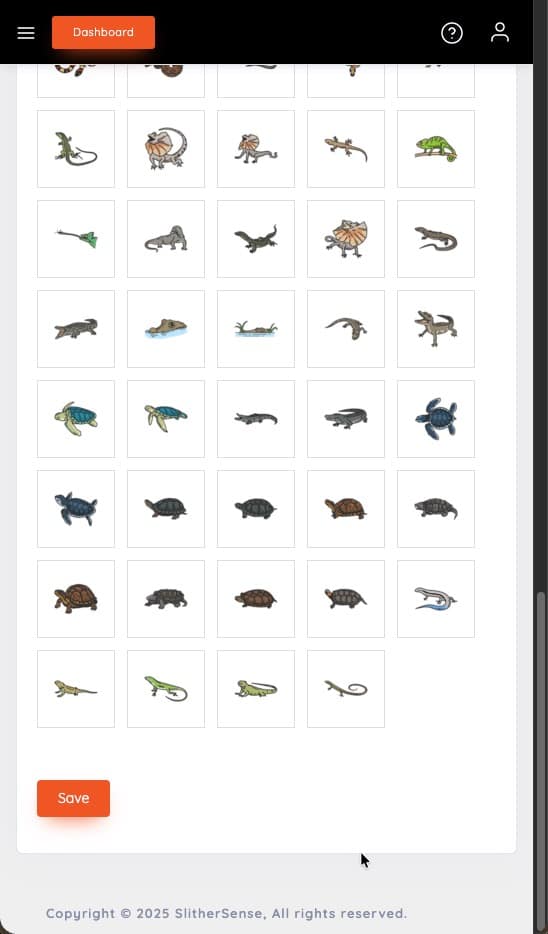
- Select an Icon
- Click Save
All Images can be enlarged by clicking on them.
Add a Pet
- From the SlitherSense Dashboard at https://slithersense.io, click the Pets menu item
- Select Add a Pet
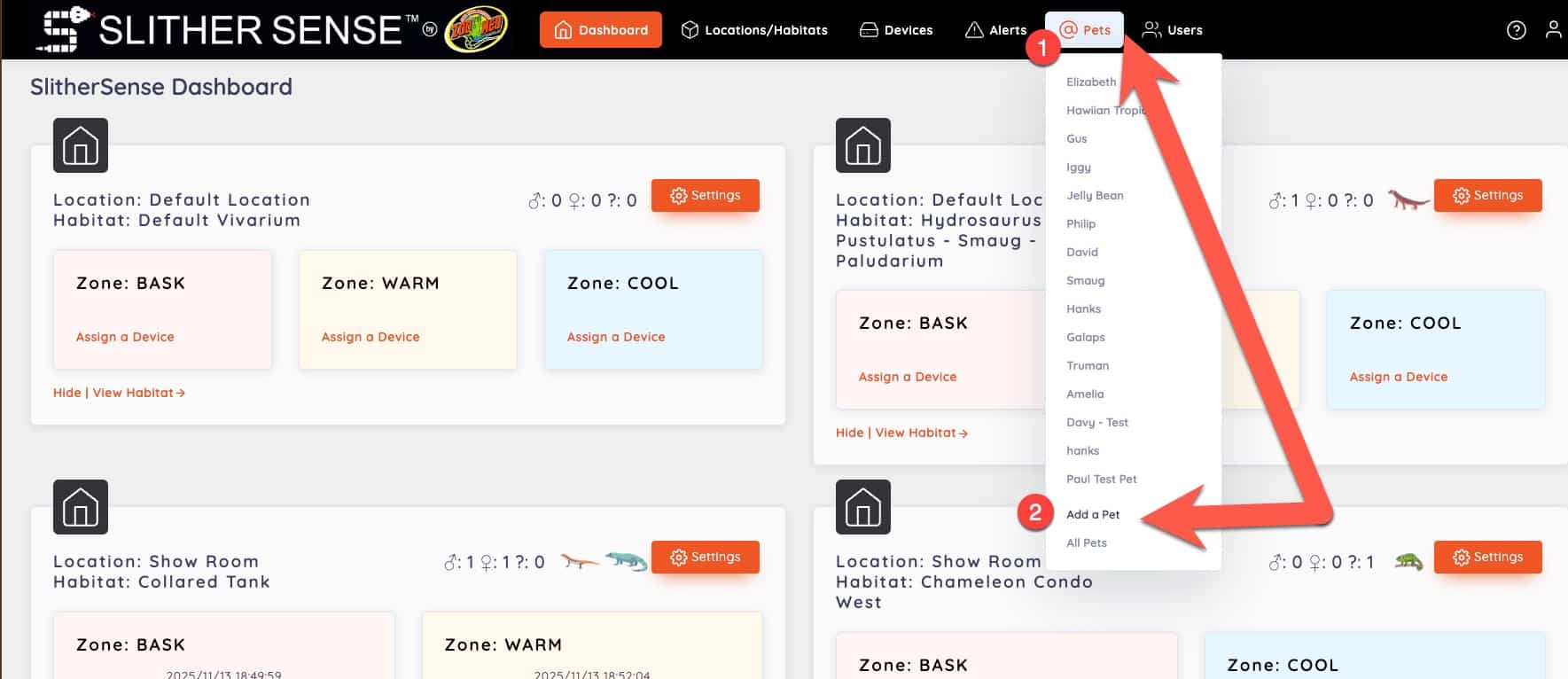
- Give the Pet at Name
- Click Submit
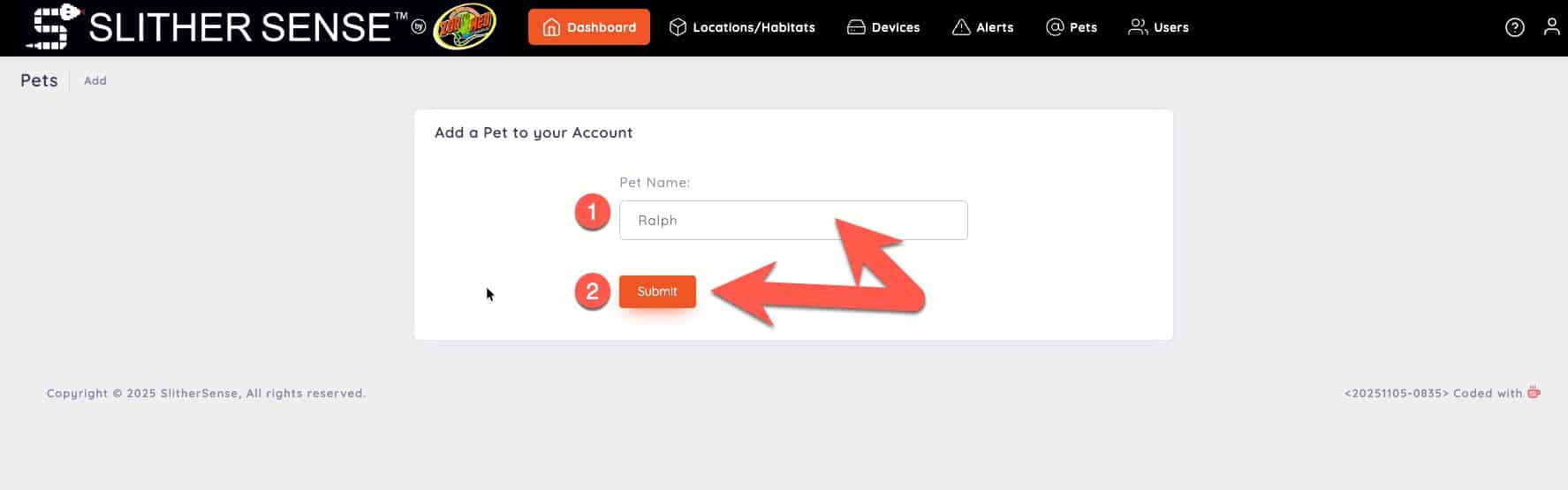
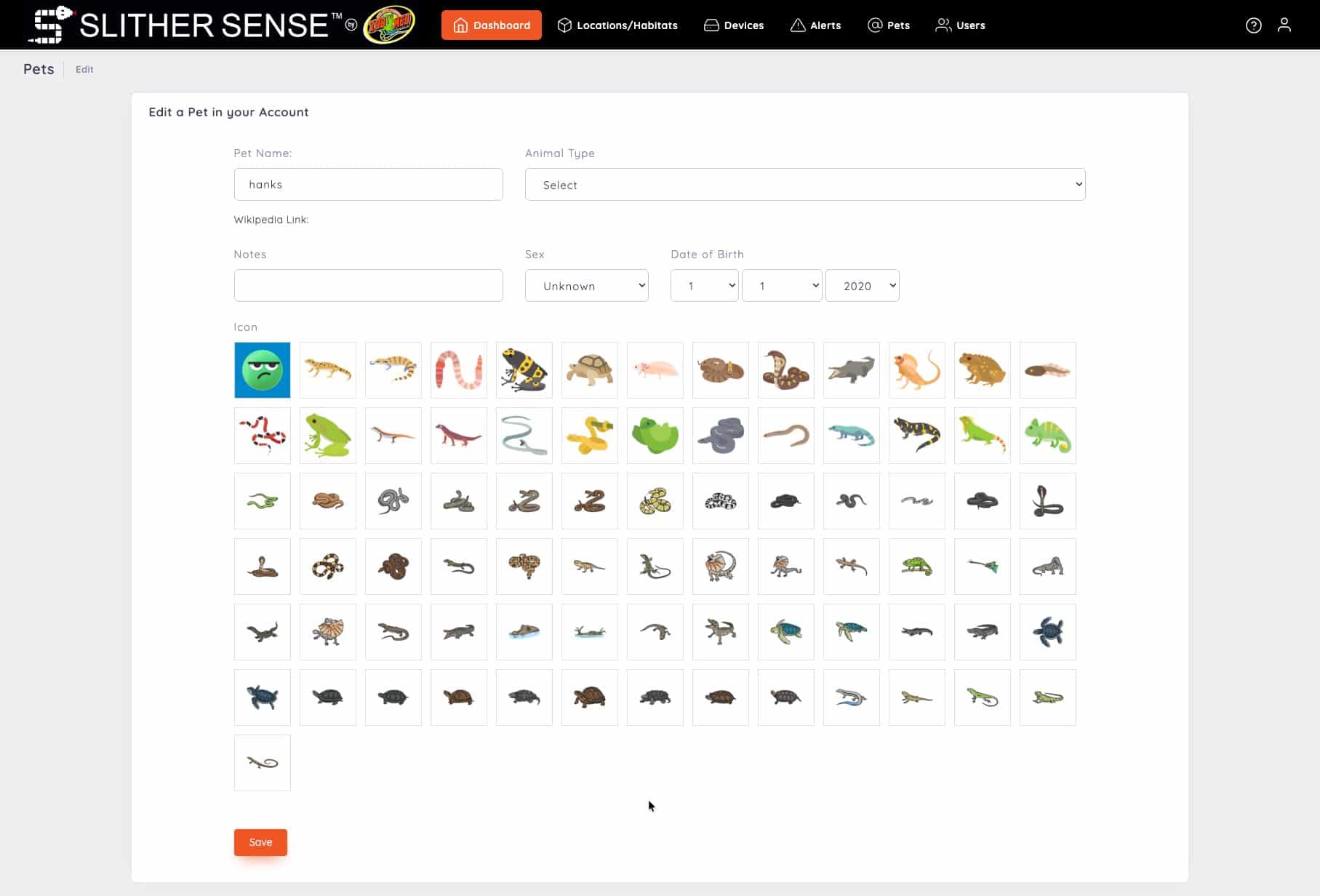
- Fill out information about your pet
- Pet Name
- Animal Type (Select from List)
- Any Notes
- Sex
- Date of Birth
- Select an Icon
- Click Save
How to a Add a Storage Unit:
In this section, are the steps necessary to add a storage location. The video shows both mobile and desktop steps. Below the video are the steps covered in the video.
All Images can be enlarged by clicking on them.
Add an Other Location
- From the SlitherSense Dashboard at https://slithersense.io, click the hamburger menu in the top left corner
- Click On Locations and Habitats
- Click on Add an Other Location
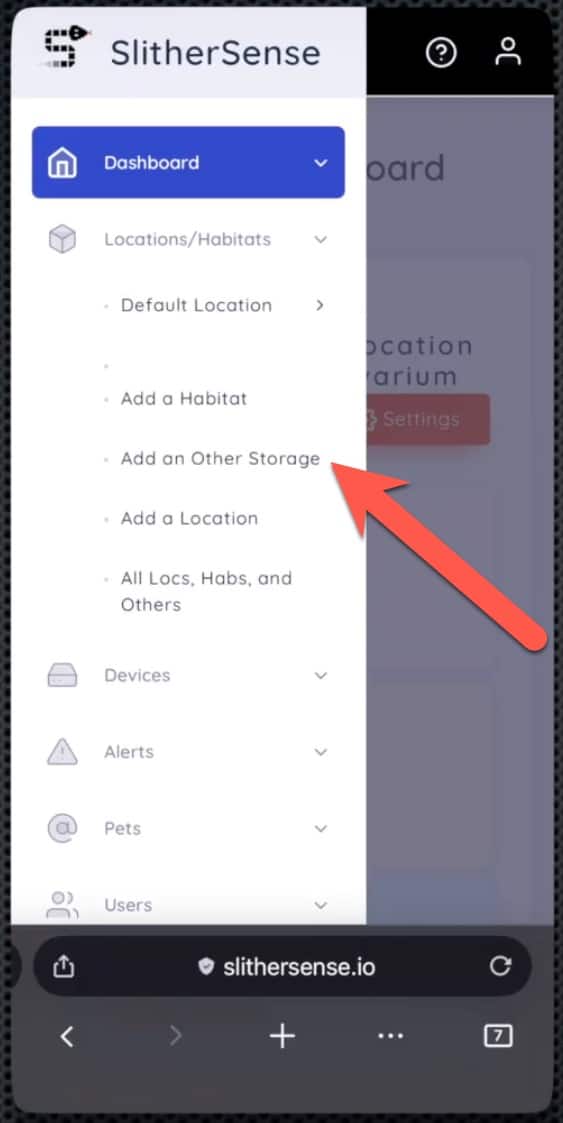
- Give the Other Location at Name
- Select a previously setup Location
- Click Save
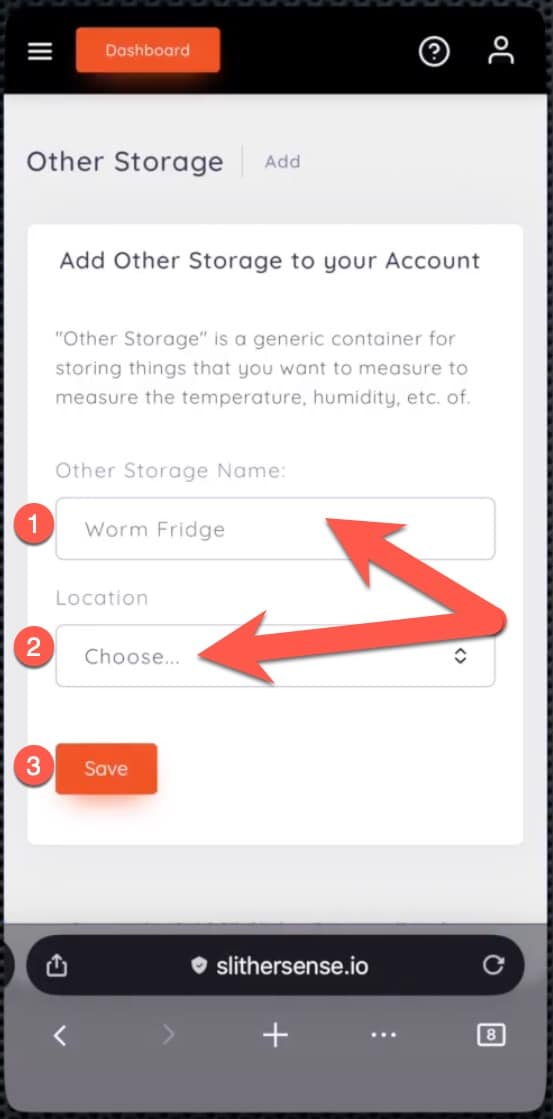
- A confirmation will appear letting you know the Other Locaiton was created successfully.
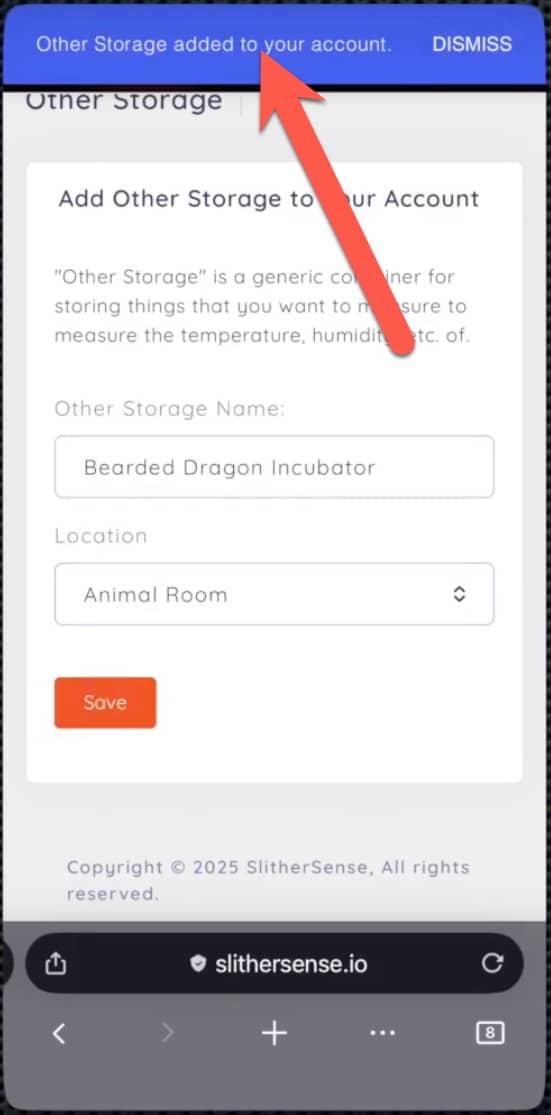
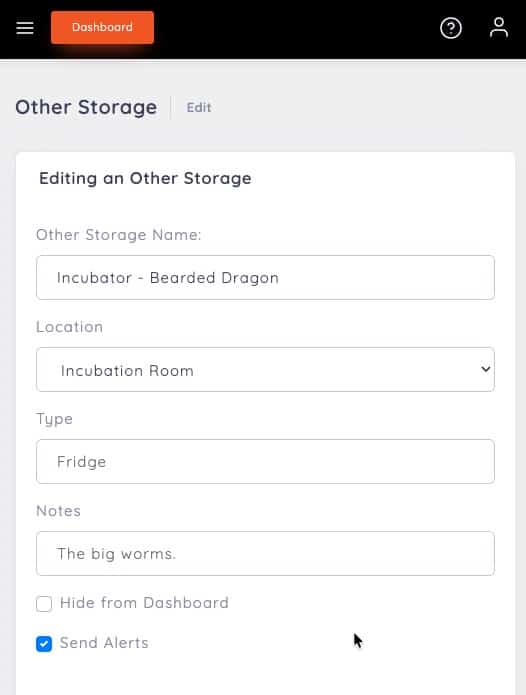
- Fill out the details of the Other Location
- Review the Name
- Review the Location
- Type (Fridge, Incubator, etc.)
- Any Notes
- Choose whether to hide from dashboard
- Choose whether or not to send alerts
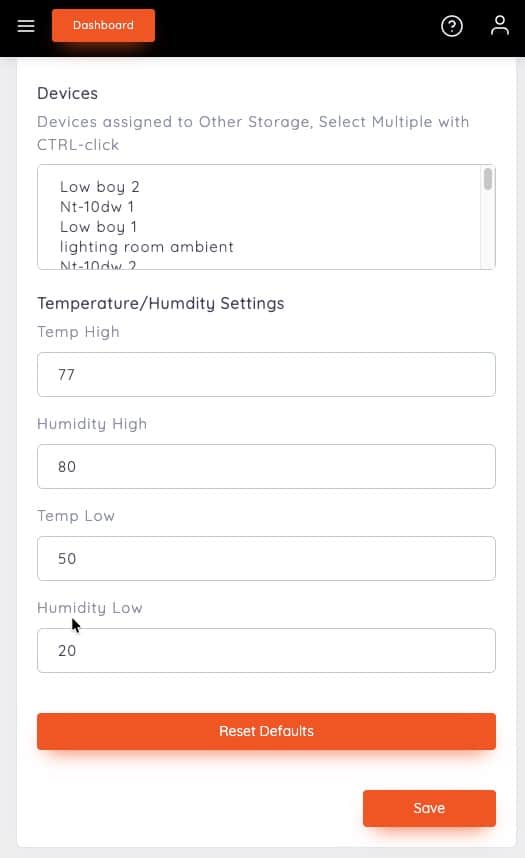
- Select your devices (Hold your CTRL key and click on all that apply)
- Set your high temp
- Set your humidity high value
- Set your low temp
- Set your humidity low value
- Click Save
All Images can be enlarged by clicking on them.
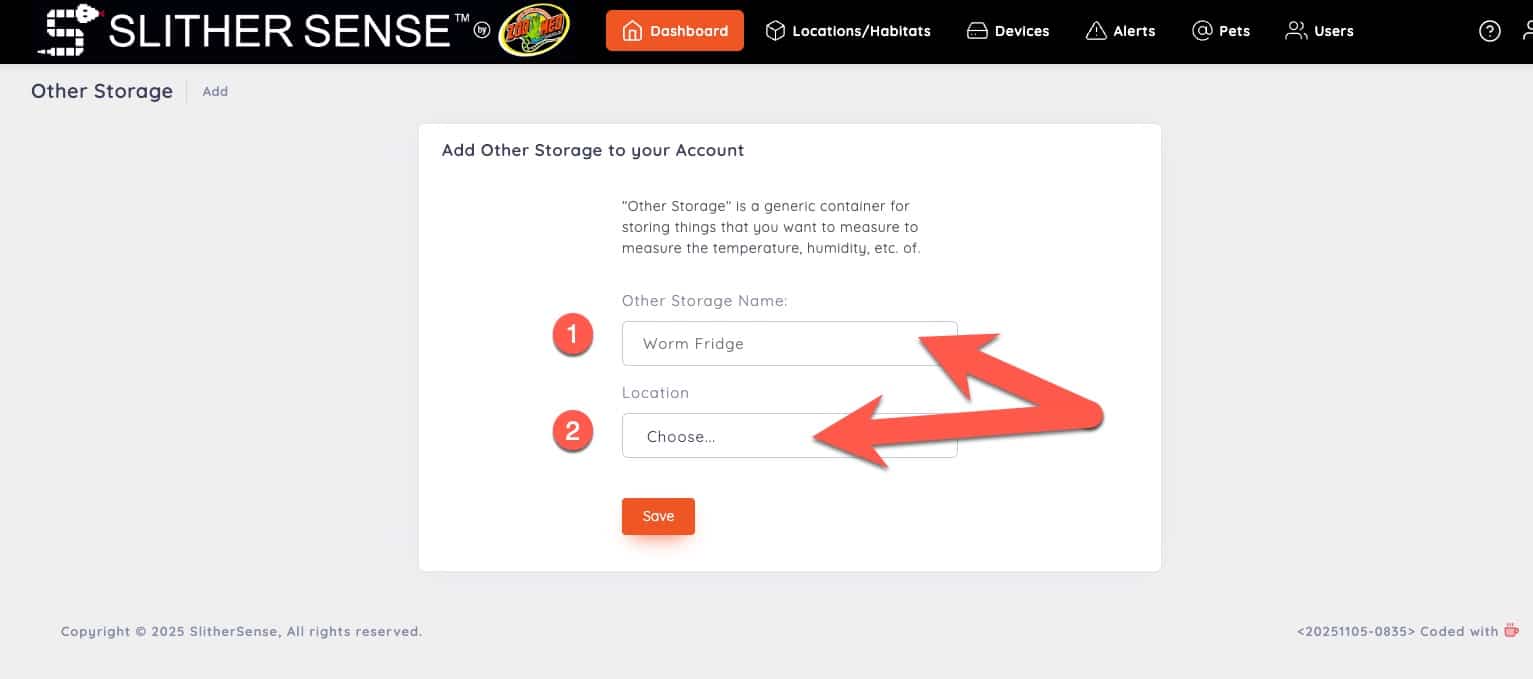
Add an Other Location
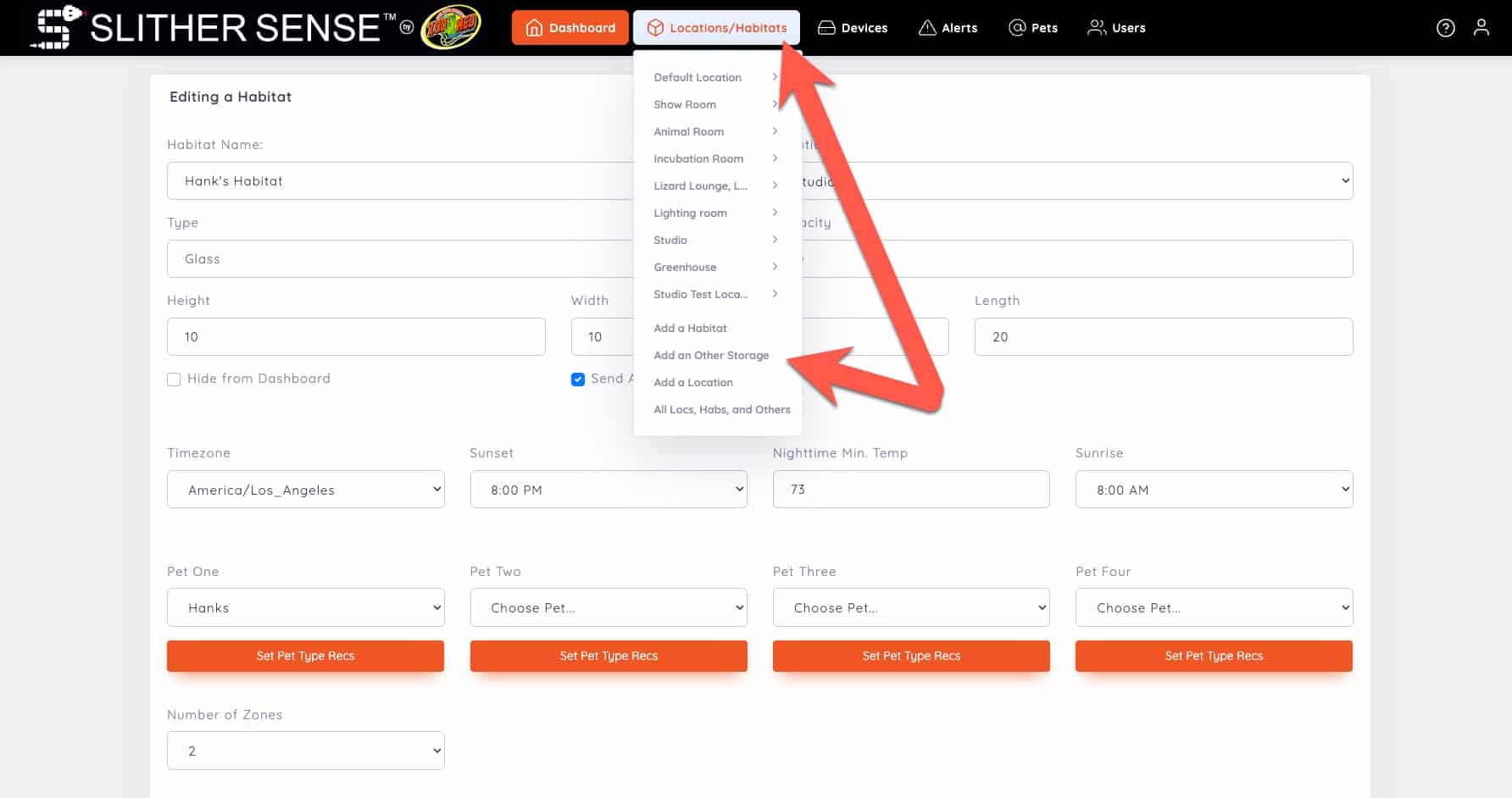
- From the SlitherSense Dashboard at https://slithersense.io, click the Locations/Habitats Item
- Then click on Add an Other Location
- Give the Other Location at Name
- Select a previously setup Location
- Click Save
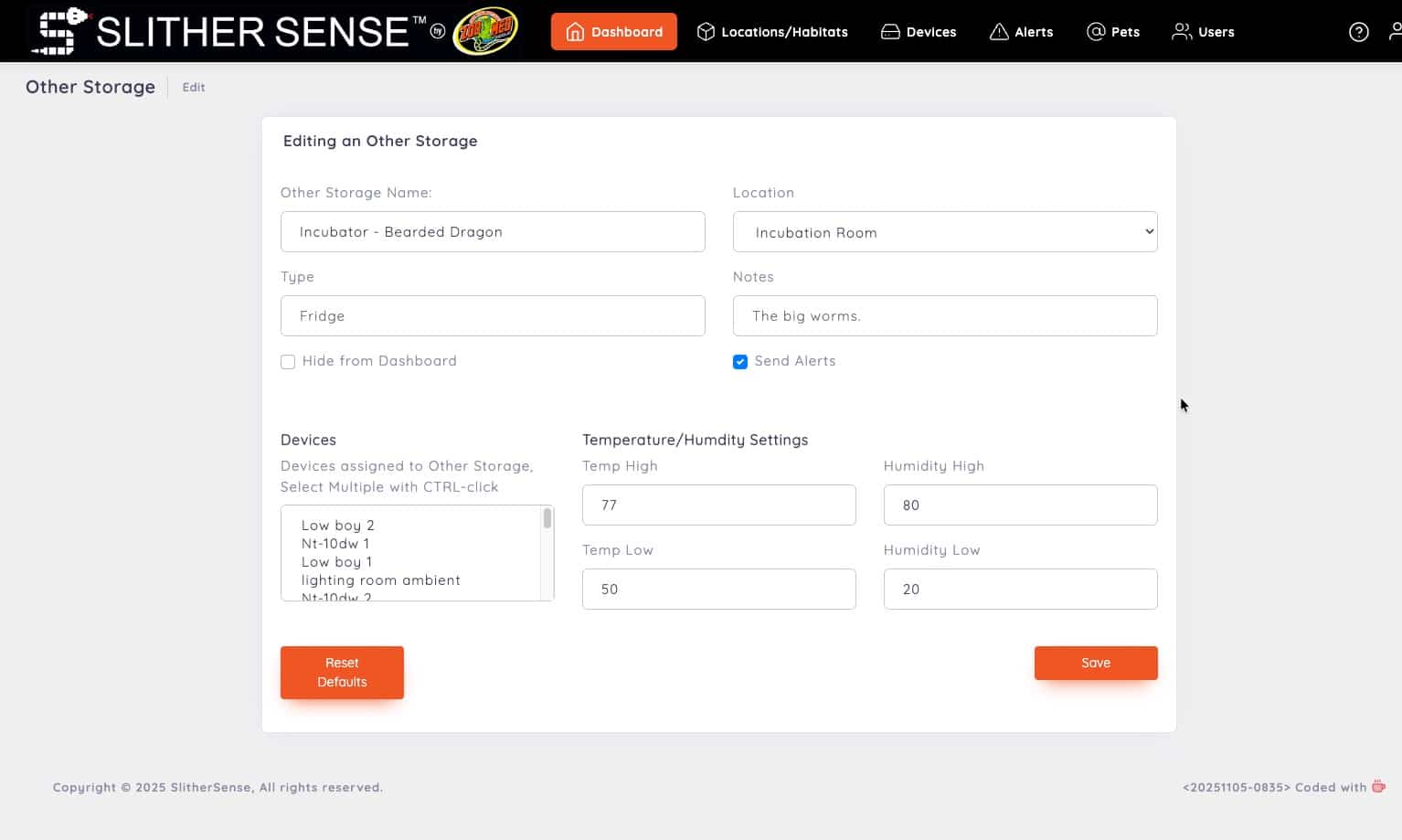
- Fill out the details of the Other Location
- Review the Name
- Review the Location
- Type (Fridge, Incubator, etc.)
- Any Notes
- Choose whether to hide from dashboard
- Choose whether or not to send alerts
- Select your devices (Hold your CTRL key and click on all that apply)
- Set your high temp
- Set your humidity high value
- Set your low temp
- Set your humidity low value
- Click Save
How to Add a User:
In this section, are the steps necessary to add a user. The video shows both mobile and desktop steps. Below the video are the steps covered in the video.
All Images can be enlarged by clicking on them.
Add a User
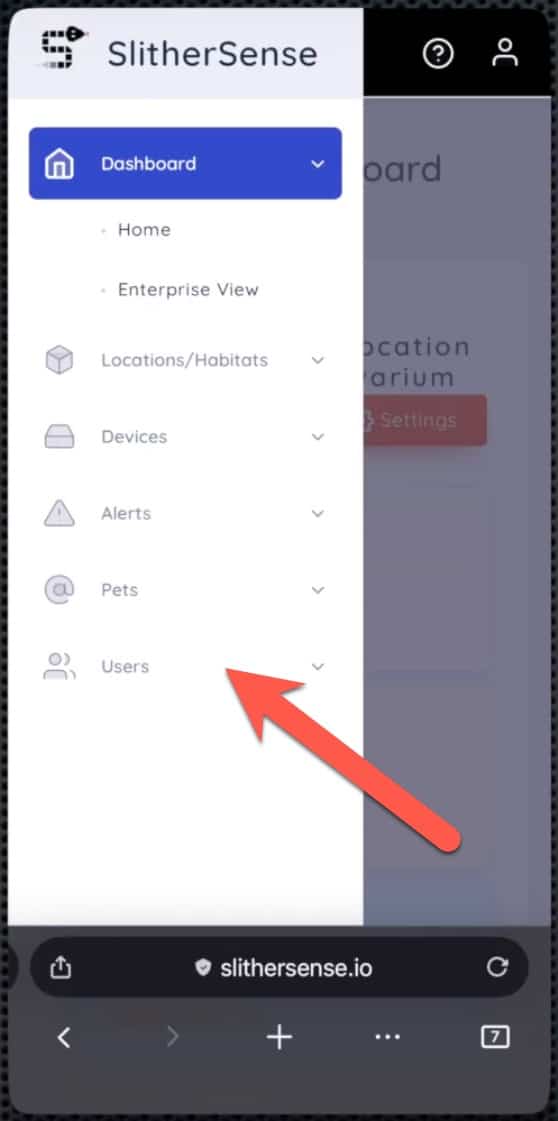
- From the SlitherSense Dashboard at https://slithersense.io, click the hamburger menu in the top left corner
- Click On Users
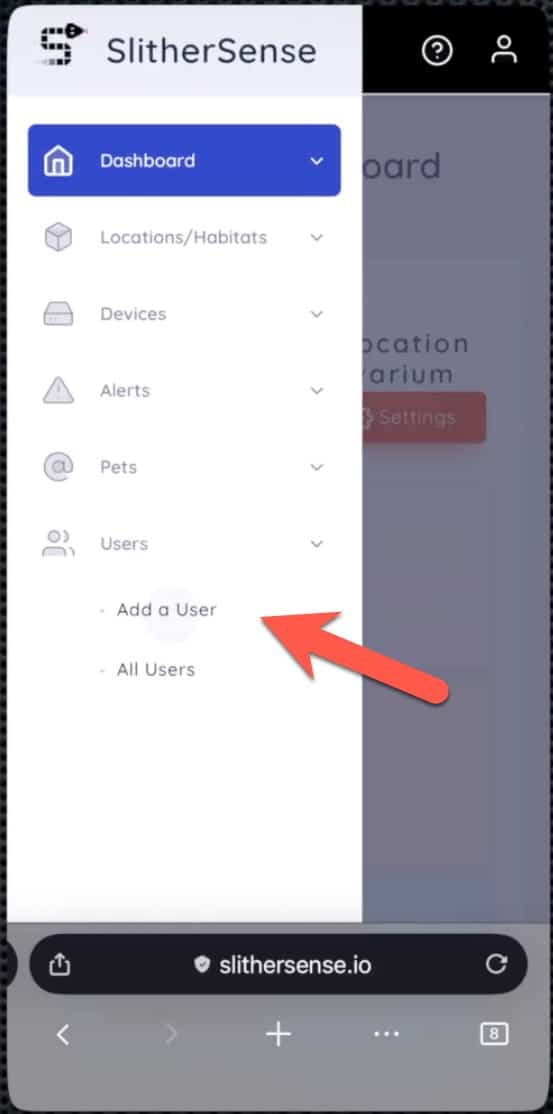
- Click on Add a User
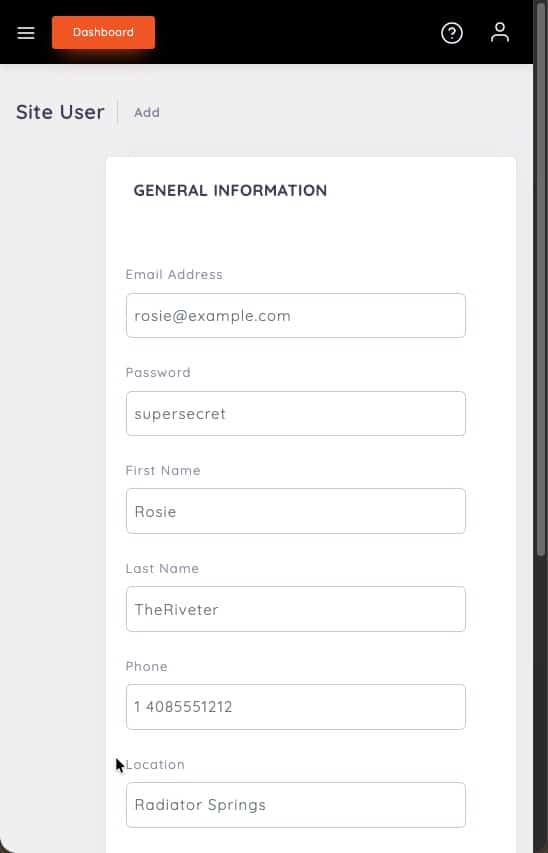
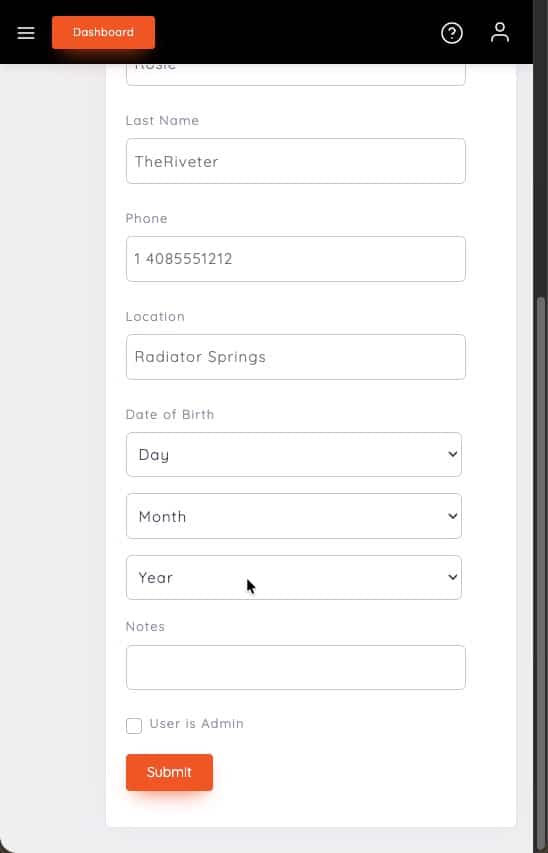
- Fill out the user's information
- Email address
- Password
- First Name
- Last Name
- Phone
- Location
- Date of Birth
- Notes
- Check if they should be an admin
- Click Submit
All Images can be enlarged by clicking on them.
Add a User
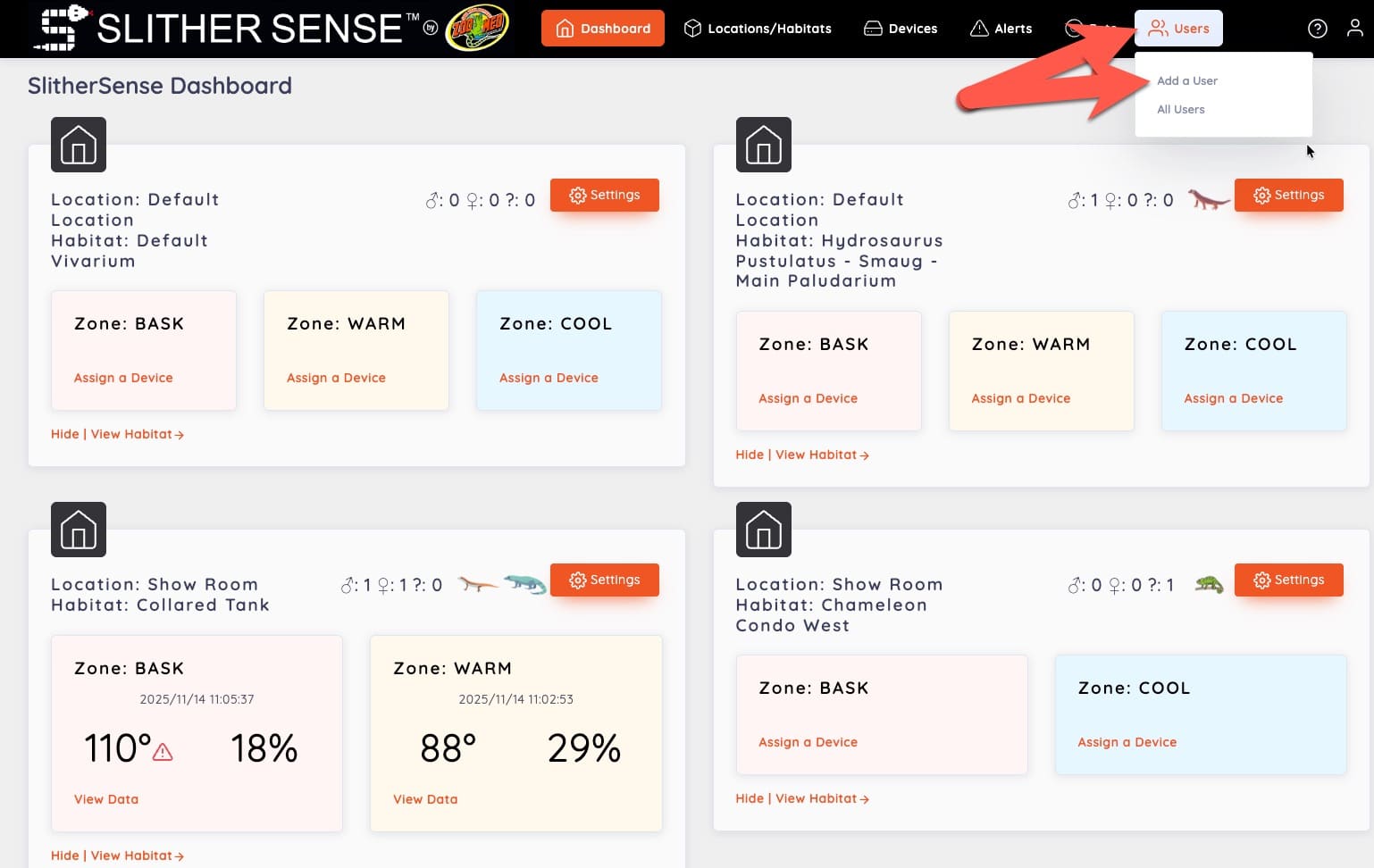
- From the SlitherSense Dashboard at https://slithersense.io, click the User menu Item
- Click Add User
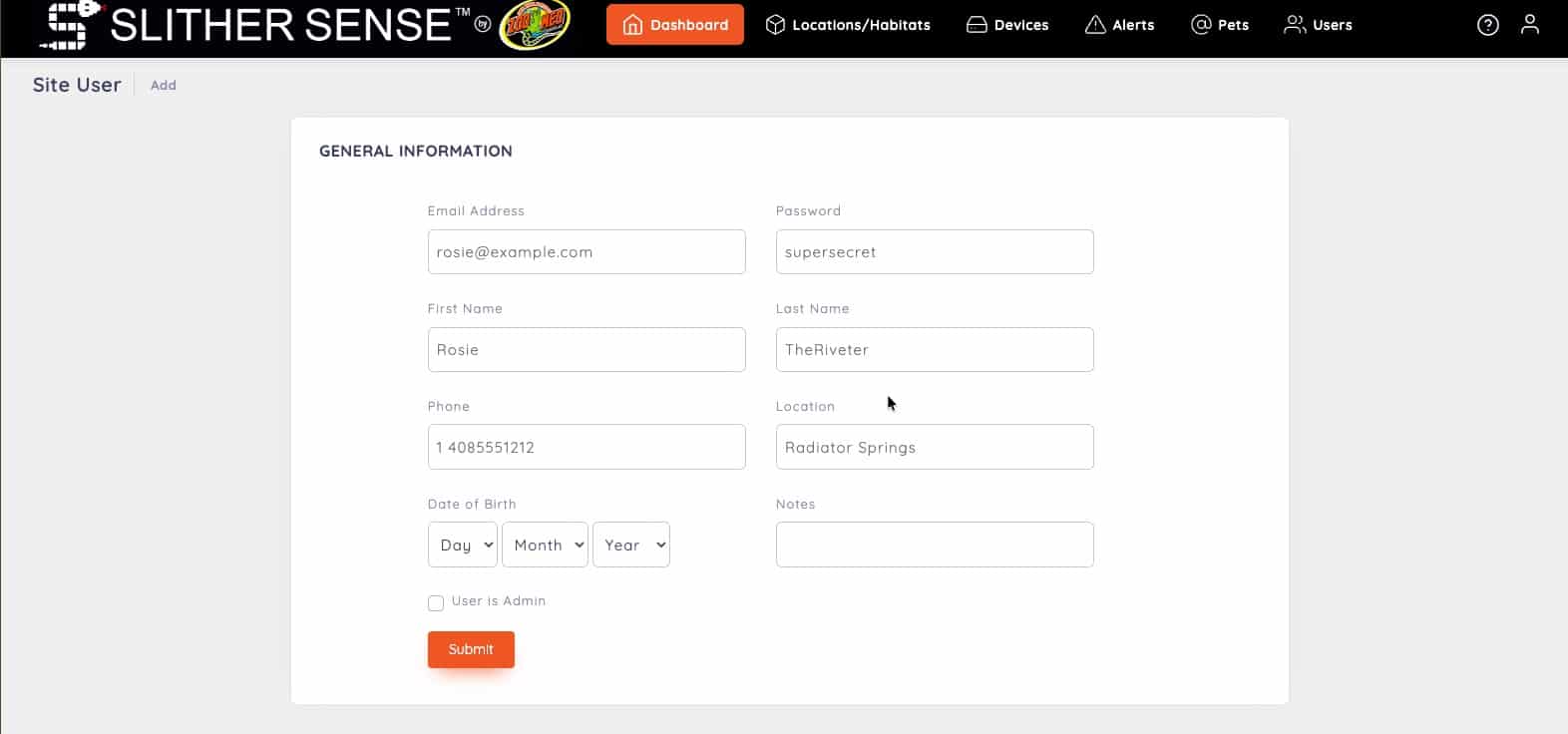
- Fill out the user's information
- Email address
- Password
- First Name
- Last Name
- Phone
- Location
- Date of Birth
- Notes
- Check if they should be an admin
- Click Submit
Using the Directory View
In this section we will learn about the directory view.
How to Edit a Location:
In this section, you will find the steps necessary to edit a location
How to Edit a Habitat or Storage Unit
In this section, you will find the steps necessary to edit a Habitat or Storage Unit
How to Add a Pet:
In this section, you will find the steps necessary to edit a pet.
How to Edit a Device:
In this section, you will find the steps necessary to edit a device.
How to Edit a User:
In this section, you will find the steps necessary to edit a user.
How to Use Enterprise View
In this section, you learn how to use Enterprise View.
How to Switch Between Imperial and Metric:
In this section, you will learn how to switch between Imperial and Metric.